
Your Mac says you're connected. The Wi-Fi bars are full. But the page won't load. If you've ever experienced this, you already know the problem. macOS shows Wi-Fi signal strength — not internet connectivity. Those bars tell you whether your Mac is talking to your router. They say nothing about whether your router is talking to the internet. This gap is small but frustrating. And it happens more often than you'd think. Most people assume the issue is with a specific website or app, when the real problem is sitting right at the network boundary between their home and their ISP.
The Problem With the Wi-Fi Indicator
The built-in Wi-Fi indicator in your macOS menu bar measures your connection to the local network — your router or access point. It has no awareness of what's happening beyond that. If your ISP goes down, your router loses its WAN connection, or you're sitting behind a captive portal that hasn't been authenticated yet, macOS will still show full bars. This creates a specific kind of frustration: you know something is wrong, but your Mac is telling you everything is fine. You start questioning whether the problem is your browser, your VPN, a specific website, or something else entirely. You waste time troubleshooting the wrong thing.
The problem is especially noticeable in a few common situations. Your router reboots during a firmware update and the WAN connection hasn't re-established yet. Your ISP has an outage that affects your street or building but not the local network. You're at a hotel or café where the Wi-Fi requires a login page but macOS hasn't triggered the captive portal prompt. You're on a call or running a background task and your connection drops silently — you only find out when something fails. In each of these cases, the Wi-Fi indicator is useless. You need something that checks real internet access, not just local network status.
What NetCheck Does
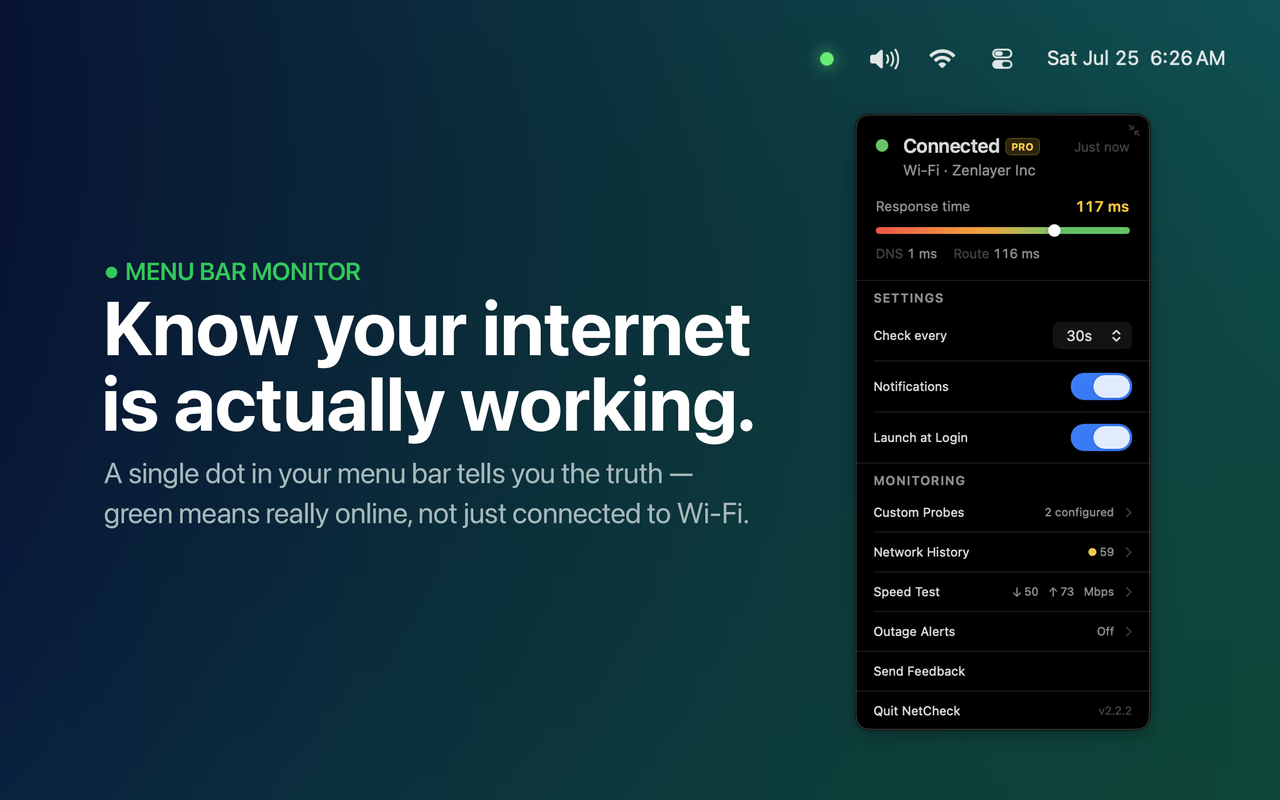
NetCheck is a macOS menu bar app that solves this with a single visual indicator: a dot. Green means you have real internet access. Grey means you don't. That's it. That's the whole interface at a glance. There's no dashboard to open, no graphs to interpret, and no configuration required to get started. When it's grey, opening the popover shows a network path diagram that pinpoints exactly where the connection is failing — your Mac, your router, or your ISP — so you're not left guessing what to troubleshoot. The dot is always visible in your menu bar, updating quietly in the background so you always have an accurate picture of your connectivity.
Under the hood, NetCheck makes a periodic HTTP GET request to apple.com and checks that the response body contains an expected string. This is something a captive portal cannot fake — it either returns the right content or it doesn't. If that primary probe fails, NetCheck falls back to a HEAD request to Google's connectivity check endpoint, verifying a 204 response. This two-stage approach makes NetCheck reliable across a wide range of network conditions, including VPNs, corporate proxies, and captive portals. By verifying actual response content rather than just checking if a connection exists, NetCheck catches scenarios that other tools miss entirely.
How It Works
Open the NetCheck popover from the menu bar and you see a live response time gauge, color-coded from green (fast) to red (slow), your current connection status — Connected via Wi-Fi, Connected via Ethernet, or No Internet — your ISP identified automatically, a VPN indicator when you're connected through one, the timestamp of the last successful verification, and settings for check interval, notifications, and launch at login.
The check interval is fully configurable — from 5 seconds to 5 minutes. The default is 30 seconds, which is a good balance between responsiveness and resource usage. NetCheck is lightweight by design: no background processes beyond the timer, no data collected, no telemetry. When your connection drops, you get a system notification. When it restores, you get another one. You don't have to keep the popover open or check the dot manually — NetCheck tells you when something changes. The response time gauge also gives you a rough sense of connection quality beyond just up or down, which is useful when you're on a slow or degraded connection.
NetCheck Pro
Everything described above is free. For anyone who wants more, NetCheck Pro is a one-time $9.99 in-app purchase — no subscription — that adds Network History with a 0–100 reliability score broken down by availability, stability, and average latency; custom probe endpoints, so you can monitor any URL or service alongside your main connection; CSV export of your full history; a built-in speed test for real download/upload/latency numbers whenever you need them; iPhone outage alerts, so you get a push notification the moment your Mac's internet drops, and again when it's back; and Shortcuts integration, so you can check connectivity or branch an automation based on whether you're actually online. Pro is entirely optional — the free dot and diagram are the whole point of the app, and Pro exists for people who want a deeper, searchable record of their connection over time.
Why I Built It
I use Claude Code — Anthropic's AI coding tool — for most of my development work. It runs long tasks in the background, and a dropped internet connection can silently break an entire session without any obvious error. By the time I notice, significant work is lost or needs to be restarted. I looked for a simple menu bar tool that would tell me whether my internet was actually working. Most of what I found was either paid, bloated with features I didn't need, or hadn't been updated in years. So I built NetCheck myself over a weekend. After using it daily for a while and finding it genuinely useful, I decided to put it on the Mac App Store. The goal was to solve a real problem as simply as possible — everything I've added since, including Pro, has followed that same rule.
Who It's For
NetCheck is useful for anyone who works from a Mac and depends on a stable internet connection. That includes developers running long builds, AI tasks, or remote sessions, anyone on frequent video calls who wants to know immediately when their connection drops, remote workers whose home internet is less reliable than an office connection, and power users who want more signal than the built-in Wi-Fi indicator provides.
It's also useful as a passive monitor — something running in the background that you rarely look at but always trust. The dot is small enough that it doesn't clutter your menu bar, but visible enough that a color change catches your eye immediately. Once you have it, you'll notice how often you glance at it without thinking — and how reassuring it is when it's green.
Technical Details
NetCheck is built entirely with SwiftUI, has zero third-party dependencies, and runs fully sandboxed in the Mac App Store. It uses the system's native network stack for all probes. No background agents, no helper tools, no elevated permissions. The app enforces single-instance behavior — launching it twice won't create a second process. It uses exponential backoff when connectivity fails, so it doesn't hammer your network during an outage. Logging is done via Apple's unified logging system (os_log), which means it integrates with Console.app if you ever want to inspect its behavior in detail.
Download
NetCheck is free on the Mac App Store, with an optional one-time Pro upgrade ($9.99, no subscription) for anyone who wants it. No ads, no account required. Mac App Store — Landing page.
Want to see it in action first? Watch the 1-minute demo.
If you try it and run into edge cases — VPNs, unusual network setups, corporate proxies — I'd genuinely like to hear about them. Use the Send Feedback option inside the app or reach out via the support page. Every piece of feedback helps shape what gets built next.