
Why AI Video Models Keep Getting Your Camera Moves Wrong (and How to Fix It Before You Generate)
Anyone who has spent an evening with a video model knows the pattern. The lighting is gorgeous, the character looks right, the location is perfect, and the camera does something you never asked for. You wrote "slow dolly in toward her face" and got a zoom. You asked for the camera to orbit the car and it drifted sideways. You regenerated six times, spent the credits, and settled.
It isn't a skill problem, and it isn't only a model problem. It's a language problem, and filmmakers solved it long before AI video existed.
A prompt carries the look, not the move
A text prompt is very good at describing what a frame contains: subject, setting, mood, lens feel, colour. It's very bad at describing motion through space over time. Look at what a simple camera move actually involves:
Where the camera starts, in relation to the subject
Where it ends
The path between the two: straight, arcing, rising
How fast it travels, and whether it eases in or holds before moving
Where it's pointing at every moment along the way
"Dolly in" compresses all of that into two words, and the model has to guess the rest. It guesses from millions of clips where "dolly," "push," "zoom" and "move closer" are used loosely and interchangeably. So you get an average of what people meant, not what you meant.
It gets worse with movement inside the scene. "The camera follows him down the corridor, stops at the doorway and pans as he crosses the room" describes two moving things, the actor and the camera, and how they relate. That's where text prompts break down almost completely.
Film already had the answer: previs
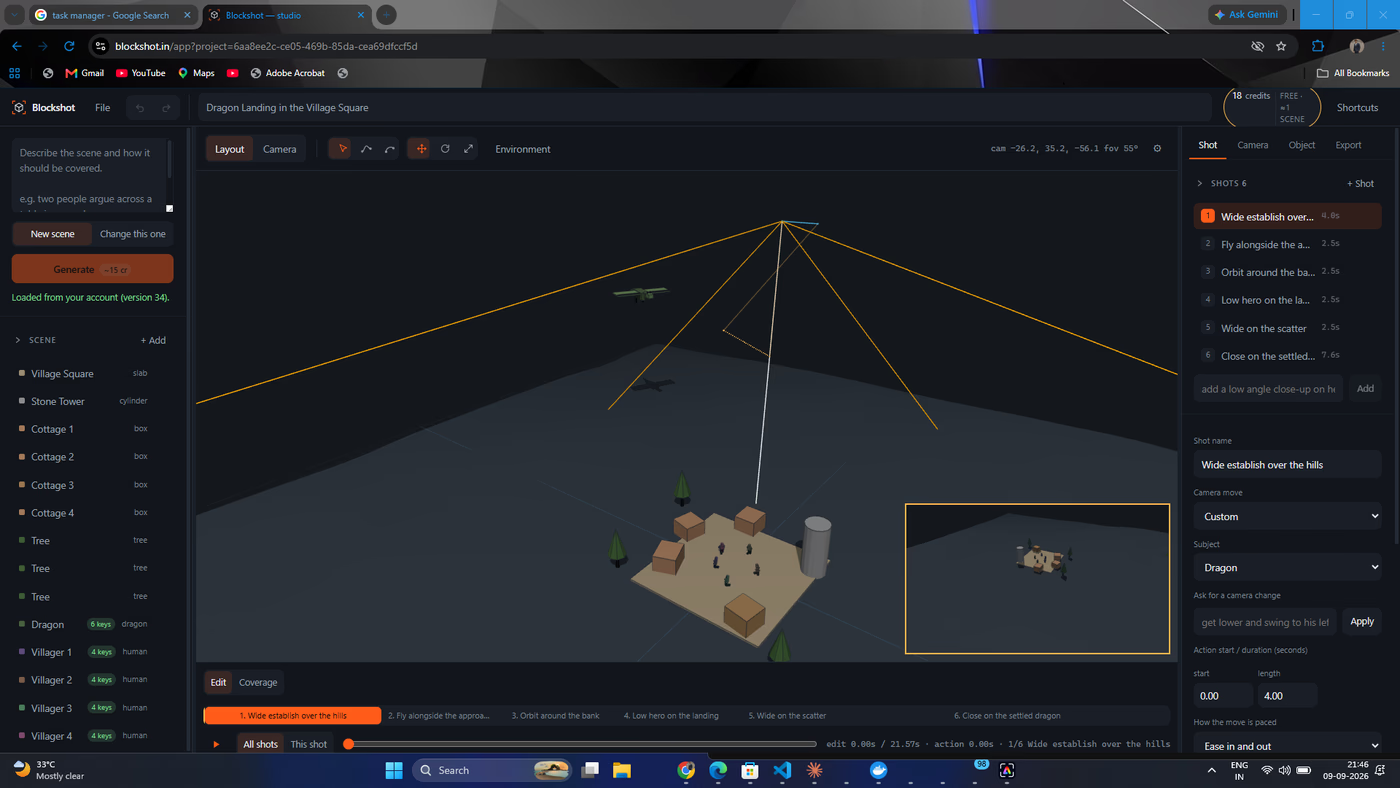
Big productions don't describe complex shots in words either. They use previsualization: a rough 3D version of the scene, with grey placeholder shapes for people, vehicles and sets, and a virtual camera doing exactly the move the director wants.
Previs isn't meant to look good. It's meant to be unambiguous. When a stunt coordinator, a camera operator and a VFX supervisor watch the same previs clip, nobody argues about what "dolly in" means. They can see it.
AI video generation brings that need back. Most current video models accept a reference video, a motion input or a first-and-last-frame setup. When you give a model an actual clip of the camera move, you're no longer asking it to interpret language. You're showing it the geometry.
What a good reference clip contains
A useful reference for a video model doesn't need textures, lighting or detail. It needs:
Correct spatial relationships. Where the subject is relative to the set and to the camera.
Correct scale. A person 1.8 m tall, a doorway 2.1 m high, a car 4.4 m long. Wrong scale gives wrong lens behaviour.
The real camera path, including speed and easing.
Motion of the subject, timed against the camera, so "stops at the doorway as he walks past" happens at the right moment.
The right aspect ratio for where the video is going: wide, square or vertical.
Blocky grey shapes are enough, and they're arguably better than detail. The model takes composition and motion from the reference and style from your prompt, without confusing the two.
The workflow that fixes it
This works with any model that accepts reference motion:
1. Block the scene before you write the prompt.
Lay out the space: walls, doorways, furniture, the path your character walks. Don't worry about how it looks.
2. Direct the camera in 3D, not in words.
Place the camera, set its start and end, and play it back. If the move feels wrong in grey boxes, it'll feel wrong in the final render too, and fixing it here costs nothing.
3. Split the edit into shots on one timeline.
If you're covering a moment from several angles, keep the action on a single clock and treat each shot as a window onto it. The cuts stay continuous, which is hard to get by generating unrelated clips.
4. Export one reference clip per shot.
Match the resolution and aspect ratio to your target platform.
5. Write the prompt for the look only.
Now the prompt only has to cover lighting, wardrobe, texture and mood. Camera and blocking come from the clip. Prompts get shorter, and results get much more consistent.
6. Use structure passes when the model supports them.
Depth, normals and line-art renders of the same blockout give structure-conditioned models an even stronger signal than a plain colour pass.
Where Blockshot fits
We built Blockshot because we kept hitting this exact wall, and the traditional previs tools are heavy 3D packages built for studios, not for someone generating shots on a laptop.
Blockshot runs in the browser. You describe a scene in plain language, for example "a dragon flies low over a village, banks around the tower and lands in the square while villagers scatter," and it lays out a 3D blockout. The set comes as simple shapes, the moving objects are animated, and there's a shot list with camera moves already in place. Then you adjust it by hand:
21 named camera moves: push in, orbit, crane, follow behind, fly alongside, over the shoulder, low hero and more, all editable after they're placed.
One-take sequences. A single camera can travel through several views without a cut, including following a character, stopping, and panning to keep them framed.
Built interior sets with real doorways, and characters who walk to a chair and sit, or reach into a cupboard as it opens.
Two clocks: one for the action, one for the edit, so several cameras can cover the same moment.
Export per shot to MP4 up to 1080p, in wide, square or vertical, plus colour, depth, normals and line-art passes.
A matching prompt for every shot, written from the real framing: lens in millimetres, camera height, and what's moving in frame.
The studio itself is free: blocking, cameras, timing and export cost nothing. You only pay for the AI step that turns a sentence into a scene. New accounts get free credits, and packs start at $9 with no subscription.
The takeaway
If your AI video comes back with the wrong camera move, rewording the prompt a seventh time usually won't fix it. Words just can't carry that much information. Show the model the move instead of describing it.
Block it out, direct the camera, and export the reference. Then let the model do what it's good at: making it look real.
Try Blockshot free at blockshot.in, no install and no card required.