
Typing slows down your workflow when ideas move faster than your fingers. Many people rely on cloud speech tools, yet those tools raise privacy concerns and fail when internet access drops. Offline voice dictation solves both problems. You speak, your words turn into text, and everything stays on your device.
This guide explains how to use offline voice dictation software for Windows without internet. You will learn setup steps, daily workflows, productivity tips, and practical use cases. If you want faster writing, private transcription, and fewer interruptions, this method fits your workflow.
What Is Offline Voice Dictation Software
Offline voice dictation software converts spoken words into written text using models stored on your computer. Unlike cloud tools, audio files never leave your device. This protects sensitive content and supports work in restricted environments.
Modern offline dictation tools rely on speech recognition engines such as Whisper-based systems. These engines deliver high transcription accuracy and support many languages. Some tools insert text directly into any open application without switching windows.
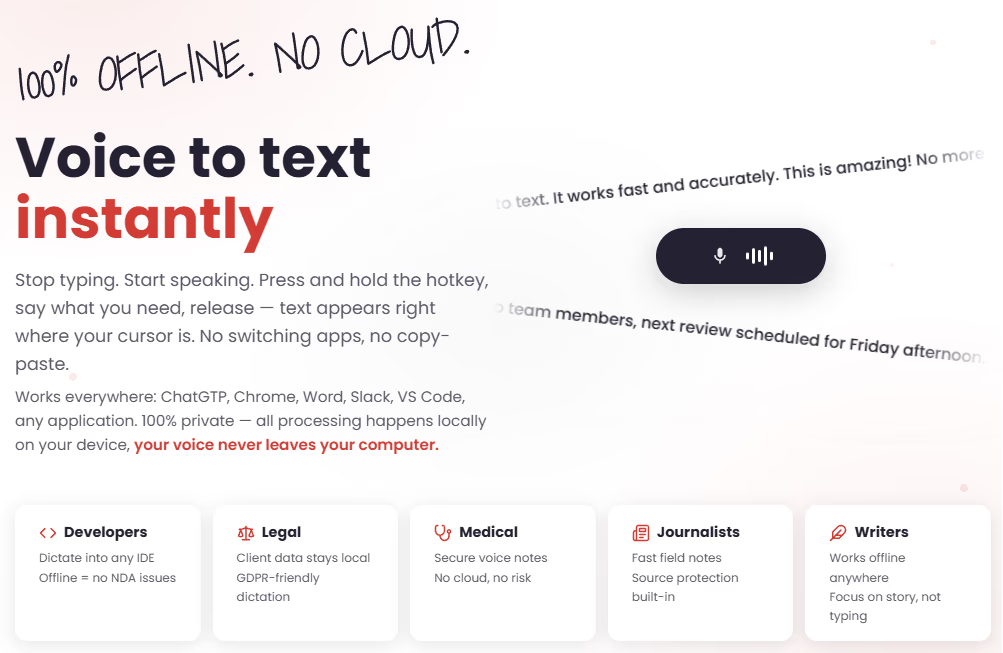
For example, Murmur voice dictation software uses local processing to transcribe speech instantly and insert text at your cursor. This removes the need for copying or pasting between applications.
Offline voice dictation fits many roles:
- Developers writing code comments
- Writers drafting articles or emails
- Business professionals recording meeting notes
- Students capturing lecture ideas
- Teams working under privacy agreements
Why People Search for Offline Voice Dictation Tools
Many users begin searching after running into limits with cloud tools. These limits often reduce productivity or create security risks.
Common reasons include:
- Internet outages interrupt transcription
- Confidential files cannot be uploaded to servers
- Subscription costs increase over time
- Typing fatigue slows work output
- Cloud services introduce latency delays
Offline tools remove these issues by running locally. Speech becomes text in real time, without sending audio files to external systems. This gives users full control over their data.
How to Use Offline Voice Dictation Software for Windows Without Internet
The setup process takes only a few minutes. Once configured, you can dictate text into any program on your computer.
- Download the voice dictation application to your Windows computer.
- Install the software using default settings.
- Choose a language model or speech recognition engine.
- Set a global hotkey to activate dictation.
- Open any text field such as a document or chat window.
- Press the hotkey and begin speaking clearly.
- Release the hotkey to insert text automatically.
This workflow allows continuous dictation across tools such as browsers, editors, and messaging platforms. You do not need to switch applications or open separate transcription windows.
Key Features That Make Offline Dictation Effective
Not all dictation tools provide the same capabilities. Some include advanced features that improve speed, accuracy, and usability.
Look for these essential features:
- Local speech recognition models
- Multilingual support with auto detection
- GPU acceleration for faster transcription
- Hotkey activation from any program
- Automatic text insertion at cursor location
- Local transcription storage
Many tools support over ninety languages and deliver accurate speech recognition with modern neural models. Some also allow exporting transcripts into formats such as text files or documents.
Daily Workflows That Benefit from Offline Dictation
Offline dictation supports many types of daily tasks. Once integrated into your routine, it reduces repetitive typing and increases output speed.
Here are practical workflows that improve productivity:
- Draft emails using spoken commands
- Create meeting notes during discussions
- Write documentation without typing
- Capture creative ideas quickly
- Generate long-form content drafts
For developers, dictation works well for writing comments, describing functions, or documenting project details. For writers, it speeds up brainstorming and drafting.
Businesses also benefit when employees record notes during calls instead of typing summaries afterward.
How Offline Dictation Improves Privacy and Security
Data security remains a top concern across industries. Many organizations restrict cloud services due to regulatory requirements.
Offline dictation addresses these concerns by processing audio locally. This means:
- No voice recordings sent to external servers
- No dependency on internet connections
- No account sign-in required
- No third-party tracking
This setup suits teams handling confidential materials such as legal documents, financial records, or private communications.
Writers working on unpublished content also benefit from keeping drafts private.
Tips to Improve Dictation Accuracy
Speech recognition improves when you follow a few simple practices. Clear input leads to better transcription results.
Use these accuracy tips:
- Speak at a steady pace
- Use a quality microphone or headset
- Reduce background noise
- Pronounce technical words clearly
- Pause briefly between sentences
Many dictation tools also include audio filters that enhance voice clarity. These filters reduce noise and improve recognition reliability.
How Developers Use Offline Dictation Tools
Software developers spend long hours typing repetitive text. Dictation tools reduce manual input and support faster documentation.
Typical developer use cases include:
- Writing commit messages
- Adding comments to code blocks
- Documenting APIs
- Recording debugging notes
- Drafting technical explanations
Developers working in secure environments also benefit from offline processing. Local speech recognition keeps proprietary code confidential.
Using Offline Dictation for Meetings and Notes
Meetings often produce large volumes of information. Typing notes during conversations slows participation.
Offline dictation solves this issue by capturing spoken ideas quickly. Some tools also support long recordings and file transcription.
Meeting workflows include:
- Recording project updates
- Documenting team decisions
- Capturing action items
- Creating summaries after sessions
Teams working remotely or in restricted networks benefit from offline transcription because it functions without internet access.
Offline Dictation vs Cloud Dictation Tools
Understanding the difference between offline and cloud-based tools helps you choose the right workflow.
Offline dictation advantages:
- Works without internet
- Improves privacy protection
- Reduces long-term subscription costs
- Supports restricted environments
Cloud dictation advantages:
- Requires minimal local setup
- Offers remote access from multiple devices
- Supports shared cloud storage
Many professionals choose offline tools because they combine reliability and data control.
Best Practices for Long-Term Productivity
Dictation becomes more effective when integrated into daily routines. Small adjustments produce large efficiency gains over time.
Follow these best practices:
- Set a dedicated dictation hotkey
- Use templates for repeated tasks
- Review transcripts quickly after recording
- Store notes in organized folders
- Practice speaking clearly and consistently
Over time, dictation reduces typing workload and improves workflow speed. Many users report faster completion of writing tasks after switching to voice input.
Who Benefits Most from Offline Voice Dictation
Offline dictation supports a wide range of professionals. The benefits extend beyond writers and developers.
Key user groups include:
- Business teams handling sensitive information
- Students managing heavy coursework
- Journalists recording interviews
- Content creators drafting scripts
- Professionals working in low-connectivity environments
Anyone who produces text regularly benefits from faster input methods.
Getting Started With Modern Dictation Tools
Starting with offline dictation requires only a few basic steps. After installation, the learning curve remains short.
If you want a reliable starting point, explore modern speech-to-text utilities built for local processing. Many offer free trials and flexible upgrades.
You can also explore more productivity tools and software options at nxgntools.com, where curated solutions help streamline digital workflows.
Once configured, offline dictation becomes part of your daily workflow. You speak, your system listens, and text appears instantly. Over time, this approach reduces typing fatigue and improves overall productivity.
Learning how to use offline voice dictation software for Windows without internet gives you more control over your workflow. It also protects your data while increasing writing speed. With consistent use, voice input becomes one of the most efficient tools in your productivity toolkit.