.avif "Free PDF Signer")
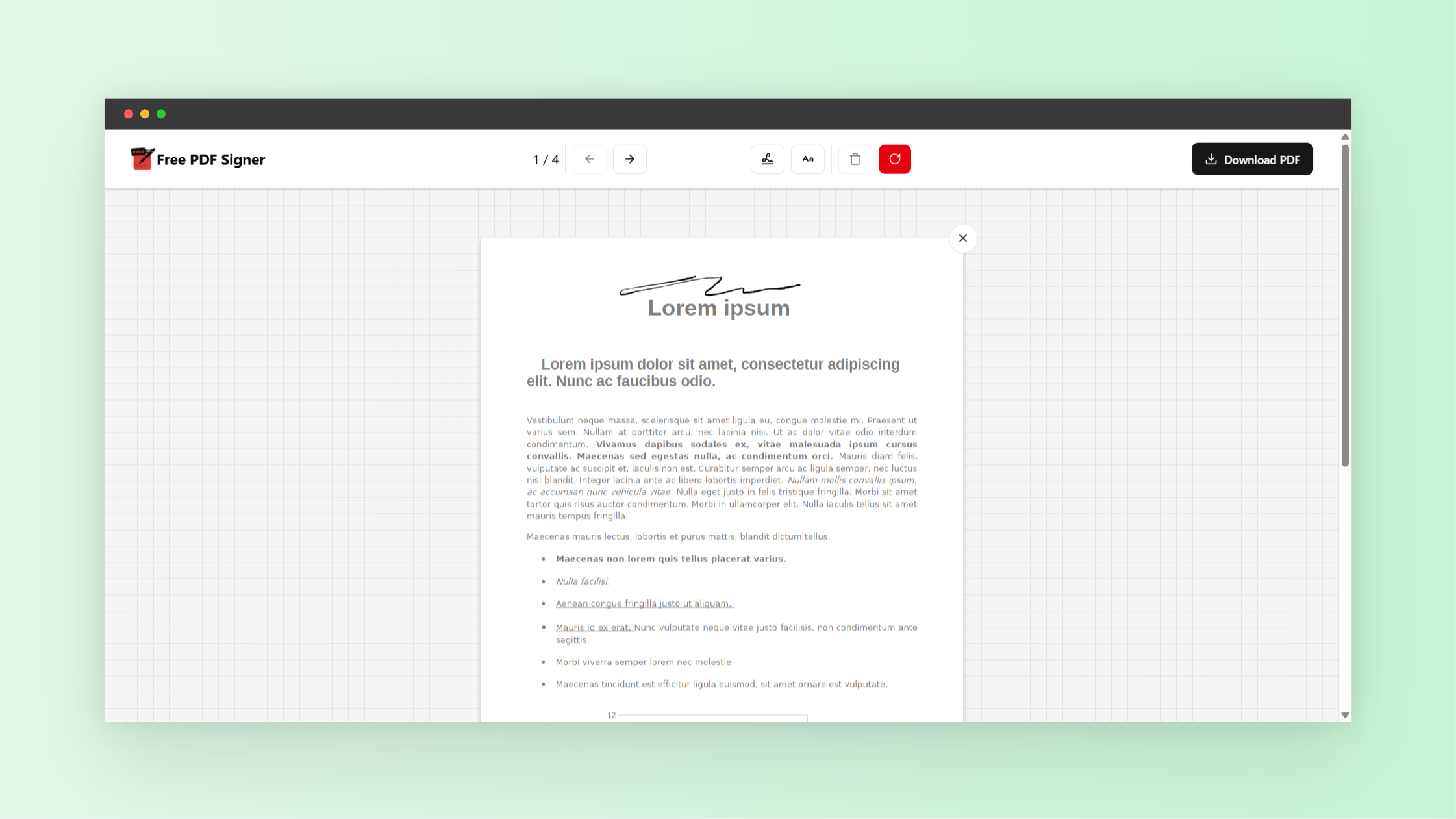
Needing a signature “right now” is one of those modern problems that should be simple, yet it often turns into downloading software, creating accounts, or dealing with a watermark that makes your document look unprofessional. If your goal is to sign a PDF online for free without watermark, you want a workflow that is fast, clean, and reliable, especially when you are signing contracts, offer letters, forms, or client approvals.
This guide walks you through a practical, minutes-only process using a browser-based signer like Free PDF Signer (tagline: “Sign PDFs Instantly. No Limits. No Fees.”). You will learn how to place a signature properly, avoid common mistakes that cause rejections, and finish with a final PDF that looks like it came from a paid signing suite.
What “sign a PDF online for free without watermark” really means
When people search for ways to sign a PDF online for free without watermark, they usually mean three specific things. First, the tool should not stamp a logo, banner, or “created with free version” text anywhere on the PDF. Second, the download should be fully usable for professional or official purposes, meaning the file should remain readable and printable with no extra overlays. Third, the process should not push you into an upsell at the final step where you discover the watermark only appears after you export.
A true no-watermark signing flow lets you upload a PDF, add your signature or initials, optionally add the date, and then download the signed PDF exactly as you expect. It also needs to be quick, because a signature request often arrives when you are on a deadline or using a phone between meetings.
Why watermarks appear in “free” PDF signing tools
Many PDF signing products offer a free tier that is mainly a trial. Their business model relies on adding a watermark to signed files or limiting exports, so that the final PDF becomes the pressure point to upgrade. This is frustrating because it wastes time and can expose you to avoidable risk, such as sending a watermarked agreement to a client or employer.
Watermarks can also cause practical problems. Some organizations reject documents that include extraneous marks, especially when the watermark overlaps signature blocks, dates, or terms. If you are signing time-sensitive paperwork, you want to avoid rework and re-signing because of a tool limitation that was not obvious upfront.
What to prepare before you sign (so it takes minutes)
Preparation is the difference between a two-minute signing session and a twenty-minute back-and-forth. If you set up the basics first, the signing step becomes almost automatic.
- Have the final PDF version ready: Make sure no one expects additional edits after you sign. Signing too early often forces you to sign again.
- Know where the signature goes: Many documents have a specific signature box, plus a separate line for printed name, title, and date.
- Decide your signature style: You may want a drawn signature for a more “hand-signed” look, or a typed signature for maximum legibility.
- Use a clean device setup: If possible, use a trackpad, mouse, or stylus. On mobile, rotate the screen for more drawing space.
- Check if initials are required: Some contracts require initials on multiple pages, not just a final signature.
Step-by-step: sign a PDF online for free without watermark in minutes
The exact interface differs by tool, but the fastest method is consistent across browser-based signers, including Free PDF Signer. The goal is to upload, add signature, place it precisely, then export.
- Open the online PDF signer in your browser and choose the option to upload or select your PDF. Use the final version of the document to avoid having to repeat the process.
- Wait for the PDF to render in the editor. This typically takes a few seconds depending on file size and the number of pages.
- Create your signature using the available method (draw, type, or image). Drawing gives a personal look, typing is crisp, and uploading an image can be ideal if you already have a consistent signature file.
- Place the signature on the correct line by clicking or dragging it into position. Zoom in to align it cleanly within the signature box so it looks professional.
- Add supporting fields if needed such as the date, printed name, title, or initials. If the document has multiple signature blocks, repeat placement carefully for each block.
- Review every page before exporting. Confirm that the signature is not accidentally sitting on the wrong page, off the margin, or overlapping important text.
- Download the signed PDF and open it once locally to verify the result. Confirm there is no watermark and that all signature placements look correct.
If your main objective is to sign a PDF online for free without watermark, the final verification step matters. It takes ten seconds and prevents the most common mistake, which is sending an unverified export to the recipient.
How to make your signature look clean and “official”
A signature can be legally acceptable and still look sloppy. If you want your signed PDF to look like it was completed carefully, focus on alignment, sizing, and consistency.
- Match the signature size to the line: Oversized signatures can obscure terms or look unprofessional. Too small can look like a stray mark.
- Use consistent placement: Center the signature in the signature box or directly above the line. Consistency matters if there are multiple signature fields.
- Choose a readable stroke: If drawing, draw slowly. Many people sign too fast on a trackpad and end up with jagged lines.
- Zoom for precision: Zoom in when placing the signature, then zoom out to check overall balance on the page.
- Keep color conservative: Black or dark blue is typically safest unless the document specifies otherwise.
These small adjustments help ensure the document is accepted on the first submission, which is usually the real goal when you are trying to sign quickly.
Common mistakes that cause delays (and how to avoid them)
Most signing problems are not technical. They are process issues that show up after you have already sent the document.
- Signing the wrong version: Confirm the file name, date, or version notes before you upload. If the other party sends “final-final” later, you will have to redo the signature.
- Missing initials on earlier pages: Skim the entire PDF for initial boxes, especially near key clauses, pricing tables, and addendums.
- Placing the signature on the wrong line: Some documents have multiple signers. Make sure you sign the line labeled for you, including the right role or company name.
- Forgetting the date: If a date line exists, fill it in. Many organizations require it for processing.
- Not checking the downloaded PDF: Always open the exported file to confirm everything looks correct and there is no watermark.
If you want a dependable “minutes” workflow, the fastest approach is to be slightly methodical before you click download.
Is an online signed PDF legally valid?
In many situations, electronic signatures are legally recognized, but validity depends on your jurisdiction, the type of document, and the process requirements of the receiving organization. Most everyday business agreements, client approvals, and internal forms accept eSignatures, while some categories of documents may require additional steps, identity verification, or in-person notarization.
From a practical standpoint, the most important thing is to follow the signing instructions provided by the recipient. If they require a specific signing method, a certain date format, or initials on each page, comply with those requirements to avoid rejection. When in doubt, ask the recipient what they accept before you sign.
Privacy and security tips when you sign PDFs online
Signing often involves sensitive details like addresses, compensation numbers, or client data. Even if you are using a simple free tool, you should treat the workflow like you are handling confidential files.
- Use a private device if possible: Avoid shared computers for sensitive documents.
- Close the tab when finished: Do not leave the document open if you step away.
- Store the signed PDF safely: Save it in an organized folder, and back it up if it is important.
- Send the PDF securely: Use the channel your recipient expects, and avoid public uploads for private agreements.
These steps keep the convenience of online signing while reducing exposure to accidental sharing or misplacement.
Best use cases for a free, no-watermark PDF signer
There are plenty of scenarios where you need a fast signature without paying for a subscription. In those cases, a tool built around “no limits, no fees” is especially helpful.
- Job offer letters and HR forms: Sign quickly and return without formatting issues.
- Freelance contracts and statements of work: Send clients clean documents that look professional.
- Rental or landlord forms: Add signatures and dates without printing.
- School permission slips and enrollment documents: Handle paperwork from a phone or laptop in minutes.
- Vendor onboarding documents: Sign and return forms without waiting for an office printer.
In each case, the key requirement is the same: you need to sign and deliver a presentable PDF that does not include a watermark.
Troubleshooting: quick fixes if something looks wrong
If your signature placement or export does not look right, you can usually correct it quickly with a few targeted checks.
- Signature looks blurry: Recreate it at a larger size, then scale down. Scaling down usually preserves clarity better than scaling up.
- Signature is misaligned after download: Reopen the file and place the signature while zoomed in. Also confirm the page size and orientation are correct.
- Cannot place signature precisely: Use zoom controls and try placing with a mouse or trackpad instead of touch, if available.
- PDF pages appear rotated: Rotate within the viewer if the tool supports it, or fix orientation before uploading.
- Multiple required signatures: Make a checklist of each signature and initial field, then verify one by one before exporting.
These fixes are designed to keep you in the “minutes” timeframe, instead of restarting from scratch.
FAQ: signing a PDF online for free without watermark
Do I need to create an account to sign?
Many people prefer tools that do not require an account for basic signing. An account-free workflow helps you sign quickly, especially when you only need to sign a single document.
Will the recipient be able to open the signed PDF normally?
Yes, in a typical workflow the signed file remains a standard PDF that opens in any normal PDF viewer. You should still open the downloaded file once to confirm everything looks correct before sending.
Can I sign from my phone?
Yes. For best results, use landscape orientation when drawing a signature and zoom in for accurate placement.
Can I add initials on each page?
Most browser-based signers support adding multiple signature elements. You can create an initial mark once and place it wherever it is required.
How do I ensure there is no watermark?
After you download, open the PDF locally and scan the header, footer, and margins on each page. This takes seconds and confirms your export is clean.
Checklist: send a professional signed PDF in under 5 minutes
If you want a repeatable process you can use every time, follow this short checklist.
- Confirm you have the final PDF version.
- Upload the PDF to your online signer.
- Create a clean signature (draw, type, or image).
- Place signature(s) and initials precisely, using zoom.
- Add the date and printed name if required.
- Review every page quickly for missing fields.
- Download and open the file to confirm no watermark.
- Send the signed PDF through the requested channel.
With a simple tool like Free PDF Signer and a consistent checklist, it becomes genuinely easy to sign a PDF online for free without watermark in minutes, while keeping the document clean, readable, and ready for professional use.