A new browser tab is one of the most repeated actions on a computer. You open it to reach a website, look something up, or write something down. Most of the time, the page that appears first is either empty or crowded with things you did not ask for.
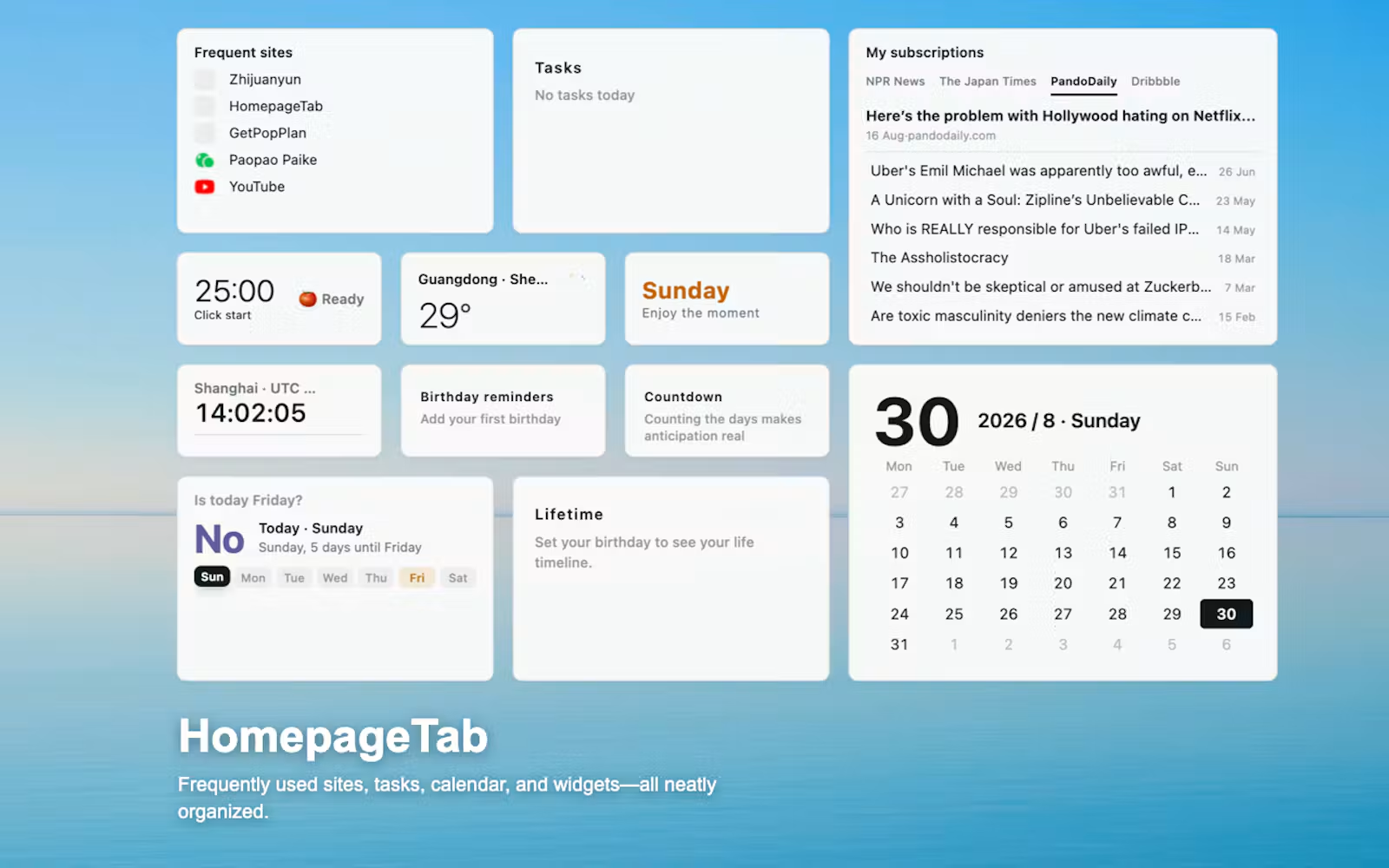
HomepageTab is a customizable new-tab page for Chrome, Microsoft Edge, and Firefox. It keeps frequently used sites, bookmarks, notes, to-dos, and optional widgets on one calm start page. It replaces only the new-tab page. It does not change the browser’s default search service.
This article is the long product explanation for homepagetab.com. It covers what the page is for, how to set it up, which widgets exist, and what HomepageTab will not do.
The actual job of a new tab
People rarely open a new tab to “be productive.” They open it because they need the next step:
- open a site they use every day
- search for one fact
- capture a note before it disappears
- check the weather, a date, or a task
- get back to a bookmark they already saved
A blank new tab adds a search box and nothing else. You retype the same addresses, reopen the same bookmark folders, and jump between apps for a two-line reminder.
The opposite failure is a start page that tries to be a portal. Icons cover the screen. News, weather, stocks, trending topics, and promotional tiles all compete for the first glance. The page becomes another dashboard to manage.
HomepageTab is built for the middle: keep the next step close, and leave the rest of the page quiet.
What HomepageTab is
HomepageTab is a personal homepage that appears in every new tab after you install the browser extension. The same workspace is also available as a web app if you want the page in an ordinary tab.
The product does four things well:
- Puts frequently used websites and saved links where they are easy to reach.
- Lets you add widgets only when they earn a place on the page.
- Lets you rearrange layout, wallpaper, and light or dark appearance.
- Keeps search on the browser’s current default search service unless you choose otherwise.
It is free to use. Signing in is optional. Without an account, the extension and the web app still work locally.
Official pages:
- Product: https://www.homepagetab.com/en/
- Install: https://www.homepagetab.com/en/install.html
- Web app: https://web.homepagetab.com/
- Privacy: https://www.homepagetab.com/en/privacy.html
- Feedback: https://github.com/gaoyong06/HomepageTab/issues
What HomepageTab is not
A start-page product is easy to overclaim. These limits are part of the design, not missing features.
- It is not a new search engine. Search continues to use the browser’s current default. You can switch to another available search engine or AI assistant on the page when you need to. HomepageTab does not hijack search.
- It is not a social portal, news homepage, or advertising wall. Widgets are optional. The default should stay usable with a small set of sites and a few tools.
- It is not a cloud document system. Notes, to-dos, and layouts live in your HomepageTab workspace. It does not replace Google Docs, Notion, or a company’s knowledge base.
- It is not a replacement for the whole browser. Bookmarks, history, and extensions you already use remain in the browser. HomepageTab sits on the new-tab surface.
- It does not require an account. Sync is available after sign-in on supported devices. Local use is the default path.
If a tool needs to change your default search, collect a full browsing profile, or fill the first screen with tiles, it is solving a different problem.
Start with the sites you already open
The first useful layer is not a widget. It is the short list of sites you actually open.
Most people have two bookmark problems at once. The browser bookmark bar is too small for everything. The full bookmark tree is too large to scan. HomepageTab treats frequently used websites and saved links as first-class objects on the page: group them, place them, and leave the rest in the browser’s own bookmark manager.
A practical setup:
- Add the handful of sites you open without thinking: email, calendar, docs, the internal tools of your job, and one or two personal destinations.
- Keep bookmark folders for the long tail. You do not need every saved link on the first screen.
- Use groups if your day has modes — work, reading, side projects — instead of mixing every icon into one grid.
- Stop when the next click is obvious. If you have to hunt, the page is already too full.
This is the same reason the store description leads with “favorite sites, bookmarks and to-dos at a glance.” The page should make the next website easier to find. It should not recreate a folder of 800 bookmarks as a wall of icons.
Add widgets only when they earn the space
HomepageTab includes more than 40 optional widgets. That number is a catalog, not a promise that every new tab shows every widget. You choose what to add. You can remove anything that does not get used.
The useful test is simple: if you would not look at it in the first five seconds of a new tab, it should not live on the first screen.
Planning and writing
These widgets cover the “write something down” half of a new tab:
- To-do list
- Sticky note
- Notebook
- Calendar
- Countdown
- Birthday reminders
- Pomodoro timer
- Off-work countdown
- Next holiday
- Year progress
A to-do on the new-tab page is not a project manager. It is a place for the next few actions so you do not open another app for a sentence. A sticky note is for text that is too small for a document and too easy to lose in a chat. A countdown is for a date that already occupies mental space: a launch, a trip, a deadline.
If you already live in a full task system, keep one short list here and leave the rest where it is. HomepageTab should reduce switching, not create a second source of truth.
Time, weather, and a calmer clock
Clock, weather, world clocks, and calendar widgets exist because people check them constantly, then forget they checked. Putting them on the start page is only worth it if they replace a tab you were going to open anyway.
World clocks help if you work across time zones. They are clutter if you do not. Weather is useful when it is your weather, in the size you actually glance at, not a full forecast product.
Reading and light information
Optional information widgets include RSS, trending topics, GitHub Trending, Skills Trending, daily English, poetry, today in history, daily movie, stocks, gold price, and exchange rates.
These are easy to overuse. A start page that reloads headlines every time you open a tab becomes a news feed. If you want a quiet homepage, pick at most one reading source, or keep these widgets off the first screen.
GitHub Trending and developer utilities exist because some people already check them daily. They are not a reason to turn HomepageTab into a developer portal by default.
Utilities that stay in the browser
HomepageTab also includes lightweight tools: calculator, developer toolbox, JSON formatter, Markdown preview, Base64 and URL encoding, password generator, Unix timestamp conversion, QR codes, color conversion, and unit conversion.
These are for the “I just need to transform this string” moments. They are faster on the new-tab page than a search for an online converter, and they do not need to stay visible when you are not using them.
Search stays the search you already chose
This is the line most new-tab extensions get wrong.
HomepageTab keeps using your browser’s current default search service. Your search habits stay the same. When you need a different engine or an AI assistant that the page already provides, you can switch on the page. The product does not need to win the search box in order to be useful.
That boundary matters for two reasons.
First, search is a trust surface. People notice when a new-tab extension quietly routes queries somewhere else. HomepageTab’s job is the page around the search box: sites, notes, layout, widgets.
Second, Chrome, Edge, and Firefox already let you choose a default search engine. Duplicating that choice inside an extension creates conflict. The honest product is: we replace the new tab, not the search setting.
If you evaluate new-tab extensions, treat “does it change default search?” as a first-class question. HomepageTab’s answer is no.
Layout, wallpaper, and the look of an everyday page
Because this page appears dozens of times a day, small visual choices add up.
You can move widgets, change the page layout, and choose wallpapers. Light and dark appearances are available so the page can follow the rest of the desktop. The aim is not a showpiece. The aim is a page that still feels like yours after the novelty wears off.
A few layout rules that hold up:
- Keep a large empty region. Whitespace is a feature on a page you open while thinking.
- Put the next action in a stable place. If the search box, the top sites, and the note move every week, you will stop trusting the page.
- Prefer fewer large widgets over many small ones. A clock, a short to-do, and a site group beat twelve tiles of equal weight.
- Use extra screens or groups if you need a second mode. Do not dump every widget onto screen one.
HomepageTab’s line “Let the open space speak for itself” is a product constraint. If the page looks busy, the setup is unfinished.
Sign in to sync, or keep everything local
After signing in, you can sync layout and common settings across supported devices. Without signing in, local use continues in the extension and the web app.
That split is intentional.
Local-first means you can install HomepageTab, set up a page, and get value before creating an account. It also means a school computer, a locked-down work profile, or a trial install does not have to start with a signup wall.
Sync is for people who already decided the page is theirs and want the same arrangement on another machine. It is not required to “unlock” the new tab.
Private workspace content is not a public website. If you share a selected desktop layout, bookmark folder, note, or calculator sheet, that share is a specific public URL for that one resource. It does not publish the rest of the account. Do not treat a share link as documentation for the whole product.
Who this page is for
HomepageTab fits people who want a new tab that is simple and close at hand:
- someone who opens the same ten sites every day and is tired of retyping them
- someone who wants a note and a to-do in the same place as the next link
- someone who likes a customizable homepage but does not want a dense icon grid
- someone who cares that search stays on the browser default
- someone who may sync later, but wants to start locally
It is a weaker fit if you want a full news start page, a social feed, a replacement for a professional task manager, or an extension whose main job is to change search.
How to start in 15 minutes
You do not need a complete dashboard. You need a page you will still like tomorrow.
- Install the extension for your browser from the installation guide:
- Open a new tab. Confirm that HomepageTab is the page you see.
- Add only the sites you opened today without thinking.
- Add at most three widgets: for example a clock, a to-do, and weather.
- Choose a wallpaper and light or dark appearance if the defaults are not yours.
- Live with that page for a day. Add the next widget only if you reached for it and it was missing.
- Sign in later if you want the same layout on another supported device.
If you cannot install an extension yet, open web.homepagetab.com in a regular tab, or follow the homepage instructions on the install page.
Chrome, Edge, Firefox, and the web app
The extension is the primary experience: every new tab opens your page. Chrome, Edge, and Firefox are the supported stores.
The web app is the same product in a normal tab. Use it when you are on a machine that cannot install extensions, when you want to try the page before changing new-tab behavior, or when you are sharing a selected public resource.
HomepageTab does not claim an official extension for every browser. If a browser is not listed on the install page, do not assume a store listing exists.
A calmer alternative to “more icons”
Customizable new-tab pages often compete on widget count. HomepageTab has a large catalog because different days need different tools. The product still asks you to leave most of that catalog off the page.
That is the difference between a homepage and a control panel. A homepage should make the next click cheaper. A control panel displays everything you might need someday.
If you have ever built a personal HTML start page, then abandoned it because it became a grid of icons, you already know the failure mode. HomepageTab exists to keep the useful parts of that idea — your sites, your notes, your dates — without requiring you to fill the screen.
Frequently asked questions
Does HomepageTab change my default search engine?
No. It replaces only the new-tab page. Search continues to use the browser’s current default search service. You can switch to another available engine or AI assistant on the page when you choose to.
Do I need an account?
No. Local features work in the extension and the web app without signing in. Sign in when you want to sync layout and common settings across supported devices.
Will every widget appear after install?
No. Widgets are optional. The catalog is large so you can pick. A good first screen usually has sites plus a few widgets, not the full list.
Is HomepageTab only a Chrome extension?
No. There are listings for Chrome, Microsoft Edge, and Firefox, plus a web app at web.homepagetab.com.
Can I use it as a browser homepage without the extension?
Yes. The install guide includes steps for setting the site as a homepage in several browsers. The extension is still the direct way to make every new tab use the page.
Where do I report a problem?
Use the GitHub issue tracker: https://github.com/gaoyong06/HomepageTab/issues.
Is the web app a public website of my data?
No. The app workspace is for you. Only content you explicitly share through a public share URL is readable by others, and that URL is for one selected resource, not the whole account.
Get started
Install HomepageTab, open a new tab, and put the next site, the next note, and the next task where you can see them. Leave the rest of the page empty until something proves it belongs there.
- Website: https://www.homepagetab.com/
- English product page: https://www.homepagetab.com/en/
- Web app: https://web.homepagetab.com/
- Chrome: https://chromewebstore.google.com/detail/homepagetab/ljneopimlgekcjhadhhbehomnfibidac
- Edge: https://microsoftedge.microsoft.com/addons/detail/eefoiphmhjciodigeomjkobccnjkicjd
- Firefox: https://addons.mozilla.org/firefox/addon/homepagetab/