
Don’t Get Caught With Your Pixels Down
A Practical Guide to VectorProof’s Resources Hub
Introduction
The logo looks sharp. The preview looks convincing. The filename ends in something reassuring.
Then the printer asks for a different export, the cutting software finds an open contour, or the embroidery viewer requests a companion file you didn’t know existed.
Now you’re investigating a file when you were supposed to be finishing a project.
Designers, freelancers, makers, and production teams regularly work across applications that interpret artwork differently. A browser can display a design beautifully while another program struggles with its structure. A file can contain genuine vector paths alongside raster images. An embroidery preview can show colors that do not represent the production thread sequence.
Understanding those differences makes it easier to ask the right questions before handing work to someone else.
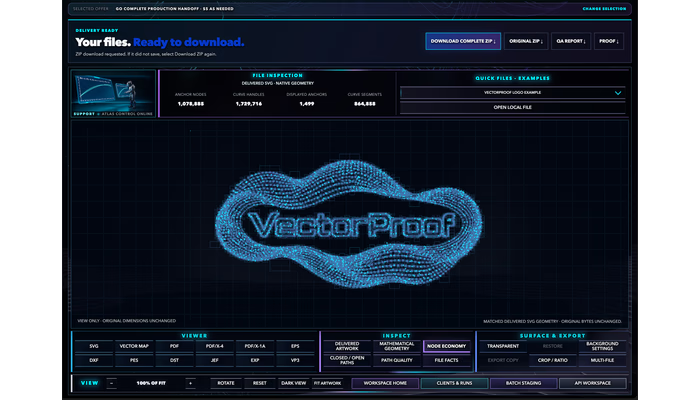
That is the purpose of the VectorProof Resources hub: practical explanations connected to file examples, named viewers, format requirements, and the evidence accompanying a production handoff.
You can start with a problem, explore a particular workflow, or look up a technical term. The goal is to understand what your next application needs—and what your finished file actually contains.
Start With the Problem You’re Trying to Solve
You shouldn’t need to understand every production term before finding a useful answer.
Sometimes you know exactly what went wrong: your DXF imported at the wrong size. Sometimes you only have a symptom: the artwork looks blurry, the cutter ignores a shape, or the embroidery colors look different.
The Resources page organizes those questions into practical starting points.
Your question | What to investigate | Where Resources helps |
|---|---|---|
Why is my vector blurry in print? | Embedded images, export behavior, geometry, and physical size | Raster and vector explanations |
Why won’t my vector file cut? | Usable paths, gaps, duplicates, units, and operation assignments | Cut-path and fabrication guidance |
Why did my DXF import incorrectly? | Supported entities, drawing bounds, units, and audit results | DXF import diagnostics |
Why does my embroidery file need another file? | Format-specific companions and thread information | Embroidery examples and references |
Is my PDF suitable for this print job? | Selected format, page geometry, color requirements, and preflight | Print-delivery guidance |
What belongs in a complete handoff? | Production assets, applicable companions, QA records, and inventory | Package-content explanations |
These questions often overlap. A file that appears to have an import problem may contain geometry outside the visible drawing area. A blurry print may result from an embedded image or a later export step. A cut failure may involve the assigned operation rather than a missing outline.
Resources helps you separate those possibilities instead of repeatedly exporting the same artwork and hoping the next filename works.
Why VectorProof?
VectorProof connects those explanations to its intended-use workflows and output-specific evidence. You can read about a problem, examine a related example, and understand which details matter when reviewing your own delivered file.
“It Says SVG. Doesn’t That Mean It’s a Vector?”
An extension identifies a file format. It doesn’t explain every object inside the document.
An SVG can contain mathematical paths, embedded images, text, clipping, effects, or combinations of those elements. A PDF can also contain both vector and raster content.
That means two files with the same extension can behave differently when enlarged, edited, printed, or imported into production software.
A PNG placed inside an SVG remains a raster image. The surrounding container doesn’t turn its pixels into editable curves. At the same time, raster content isn’t automatically a mistake: photographs and other raster-compatible print artwork can belong in a legitimate print document.
The useful question is whether the file contains the structure required for its intended purpose.
If the job requires genuine vector geometry, inspect the paths. If it requires a print PDF containing photographic artwork, review that document against the selected print requirements.
The Resources explanation of raster and vector artwork makes this distinction practical. It explains why zooming a preview or changing a suffix cannot establish what the file contains.
Why VectorProof?
VectorProof’s Structural QA follows the selected output and intended use. Where a route requires vector geometry, the relevant checks concern the actual delivered structure and embedded content. A filename alone doesn’t establish that the requirement was met.
That gives customers a more useful basis for reviewing an output than simply recognizing its extension.
“Why Does My Vector Still Look Blurry?”
Blurry artwork can have several causes, and each calls for a different response.
An embedded bitmap may have too few pixels for the intended print size. An export may rasterize an effect. A preview may display a reduced-resolution representation. Genuine vector paths may also trace a jagged silhouette so closely that the resulting geometry preserves the source image’s rough edges.
Those are different problems.
Start by identifying which element looks wrong and which file you are examining. Is it the source, an editor preview, a newly exported PDF, or the actual file sent to the printer?
Then compare the result at its intended physical size.
A design can appear acceptable on a small screen and lose clarity when enlarged. Conversely, an extreme zoom can make a normal display artifact look like a production defect. Context matters: the output size, receiving application, and affected element all belong in the investigation.
Resources encourages reviewing the actual export and checking for embedded images, effects, and changes introduced during delivery.
Why VectorProof?
VectorProof’s relevance is the connection between prepared artwork and recorded structural checks. For a genuine-vector route, customers can examine whether visible content depends on pixels or geometric paths.
For print work, the selected format and receiving printer’s requirements guide the review. That keeps the discussion grounded in the actual job.
“Will All My Detail Survive?”
A logo isn’t always a simple symbol with a few smooth curves.
It might contain fine lettering, layered illustration, small internal openings, closely spaced details, or a dense field of shapes. Those features can define the artwork’s character.
The Resources page includes both a detailed VectorProof logo reference and a completed MOONLANDR illustration example. The illustration shows fine contours, layered shading, and open letter counters rendered in Chromium.
These examples give visitors something concrete to inspect.
Look at the lettering. Are the internal openings readable? Do narrow features remain distinct? Does shading preserve the intended appearance? Are small details useful at the final output size?
Detail alone is not a quality measurement. More nodes do not automatically produce better geometry, and fewer nodes do not automatically mean a cleaner result. Simplification needs to preserve the intended shape within the applicable requirements.
The right balance depends on what the artwork will become.
Why VectorProof?
The examples connect visible appearance with a particular completed artifact or approved reference. They help explain what customers should examine when judging detailed output.
A readable SVG illustration demonstrates that artifact’s rendering. Fabrication, embroidery, and print suitability each require their own checks for their selected use.
“Why Won’t This File Cut?”
A shape can look closed without being a usable closed contour.
Two endpoints might nearly meet. Duplicate segments can sit directly on top of one another. A decorative stroke can look like an outline while representing something different from the boundary the receiving software needs.
Units and physical scale can introduce further confusion.
The Resources guidance on closed cut paths and open-loop diagnostics explains several things worth inspecting:
- Gaps between endpoints.
- Duplicate or overlapping segments.
- Self-intersections.
- Zero-length entities.
- Unexpected scale or drawing bounds.
- Whether the geometry has the correct operation assignment.
The intended operation is essential.
An outer cut boundary may need to form a closed contour. An open line used for a score mark may be entirely appropriate. Closing every open line can change the design and create an incorrect operation.
Before repairing geometry, establish what the line is supposed to do.
Why VectorProof?
VectorProof’s fabrication approach distinguishes geometry by its intended role. The relevant checks follow the selected workflow, including the closure and integrity requirements that apply to that operation.
That makes the handoff easier to interpret: a cut boundary, engraving, and alignment mark each communicate a different production intention.
Give Every Manufacturing Operation a Name
The Resources mounting-plate example makes operation roles visible.
The design includes bolt holes, rounded slots, a center opening, an outer perimeter, alignment score marks, and a centered engraving. The combined DXF presents the named operations together.
Separate examples then isolate the inner cuts and outer cut.
This is useful because a production drawing can contain several visually related elements that serve different purposes. Someone receiving the file needs to know which geometry defines an opening, which defines the outside edge, and which should become a mark or engraving.
The alignment marks in the combined example are intentionally absent from the cut-only files. Their absence communicates the separation of operations.
The page names the viewer used to inspect the DXFs and reports the observed audit results. Visitors can examine the combined plate alongside the related operation files.
Why VectorProof?
A matched operation set can communicate more clearly than an unexplained collection of lines. VectorProof’s example shows how named roles and related assets can travel together as a documented fabrication handoff.
The next production stage still includes CAM planning, tooling, material choices, workholding, and machine setup. The Resources example concerns geometry and file inspection; those later steps have their own requirements.
“Why Did My Embroidery File Open in the Wrong Colors?”
Embroidery introduces another distinction: visible artwork and stitch data describe different things.
A source image shows an appearance. A stitch file describes a sequence interpreted by embroidery software and equipment. The handoff may also need supporting information about colors, thread sequence, or other format-specific details.
Resources includes an especially clear example: an EXP file opened in Stitch-Art.
The viewer requests an INF companion. The page shows that request and then shows the badge displayed with the supplied companion.
That pairing tells a useful story. A customer could have the main stitch file and still be missing information expected by the receiving viewer.
The example also explains that DST preview colors may be assigned by the viewer, with the thread sequence recorded separately. A different-looking preview does not, by itself, establish that the production color instructions were lost.
The correct review depends on the chosen format and application.
Why VectorProof?
A useful embroidery handoff considers the stitch asset and the companions applicable to that route.
VectorProof’s Resources page demonstrates the EXP-and-INF relationship in a named viewer instead of leaving customers to infer why the second file exists. It also distinguishes viewer evidence from a physical sew-out, which must account for fabric, hooping, tension, and equipment.
Artwork to Embroidery Requires More Than a New Extension
If you start with a PNG, its pixel dimensions do not specify the finished stitched size.
A useful embroidery request needs the intended physical dimensions and a clear understanding of the features that matter: lettering, boundaries, filled areas, narrow details, and transitions.
Digitizing interprets those features into stitch-oriented data. Merely renaming an image cannot supply that structure.
The Resources embroidery guidance explains why customers should review the generated dimensions, visible stitch structure, transitions, and documented sequence together.
It also encourages preserving the files and viewer messages when something does not match. If the reopened design has different dimensions or statistics from the report, that discrepancy deserves investigation.
Likewise, a stitch count is a useful fact about an artifact, but it does not answer every question about how the design will sew.
Why VectorProof?
VectorProof’s embroidery discussion centers on the deliverable: stitch-format assets, applicable companions, relevant statistics, and recorded evidence.
That helps customers evaluate what they received and what still needs checking in their own production workflow. The Resources page provides a vocabulary for that review without requiring visitors to become embroidery specialists before asking a useful question.
“Is a PDF Automatically Ready for My Printer?”
PDF describes a broad document format. PDF/X refers to a family of print standards, and the selected variant matters.
A printer may specify requirements involving color, font handling, transparency, page geometry, bleed, or other production details. Choosing a familiar export preset does not establish that every requirement has been satisfied.
Resources separates several related questions:
- What output format was requested?
- What is actually inside the exported file?
- Which structural checks were performed?
- Did that saved output render in the named application?
- What does the receiving printer require for final acceptance?
The print example shows a generated PDF/X candidate rendered with Poppler. The page explains the scope of that evidence: the candidate rendered in the named application.
A printer’s production preflight remains a separate step tied to its own requirements.
That distinction is useful when diagnosing a rejection. Instead of repeatedly changing the filename or export preset, read the preflight report and identify the actual failed condition.
Why VectorProof?
VectorProof connects the selected print output with structural and rendering evidence. That gives the receiving printer and designer a more specific starting point for discussion.
Ordinary PDF and a particular PDF/X variant remain distinct outputs. The Resources guidance helps explain why the requested format and the final exported bytes both matter.
Keep Printable Artwork and Cut Geometry Aligned
Print-and-cut work brings two related needs into the same project: the visible printed design and the contour used for cutting.
A decorative border might look like a cut line without being the intended machine boundary. A correctly shaped contour can still become unusable if its scale or position changes relative to the artwork.
The Resources guidance recommends reviewing the exported assets together.
Confirm the final dimensions. Identify the actual cut contour. Check page geometry and alignment. Preserve the relationship between the printable artwork and the geometry when transferring the handoff.
The receiving workflow may have specific requirements, so those instructions belong in the review.
Why VectorProof?
VectorProof’s Resources material explains the distinction between printable appearance and production geometry. The relevant handoff follows the selected print-and-cut format and intended use.
That helps customers ask a more precise question than “Does this look right?” They can ask whether the artwork and cut boundary remain correctly related in the actual delivered assets.
What Does a Successful Preview Actually Prove?
A preview is valuable because it makes a result visible.
You can spot missing lettering, unexpected fills, changed proportions, misplaced objects, or a companion-file issue. Opening a file in another application can also reveal a problem that was hidden in the original editor.
However, the evidence needs a clear scope.
A viewer import establishes what happened with a particular file in that viewer. A renderer shows how a particular output rendered. A DXF audit reports the structural findings of that audit.
Each observation answers a useful question.
Resources identifies the artifact, application, and observed result beside its examples. That makes the evidence easier to interpret and prevents a screenshot from carrying a broader claim than the inspection supports.
A browser-rendered illustration, an embroidery viewer import, and a fabrication audit are different observations serving different workflows.
Why VectorProof?
The Resources hub makes those distinctions part of the product explanation.
Customers can see which file was inspected, which application was used, and what was observed. That context is more useful than an unexplained “passed” label because it helps the receiving person understand how the evidence applies to their next step.
Know What Travels With the Package
A production handoff may contain several files, and their purposes should be understandable.
The package contents section explains the components that can accompany a Complete Production Handoff.
Component | Its purpose |
|---|---|
Production assets | Supply the selected-format output for the intended workflow |
Applicable companions | Carry supporting information required by the chosen format or viewer |
Production records | Describe applicable stitch, color, operation, or production details |
Structural QA | Record checks appropriate to the delivered output |
Proof certificate | Identify the verification outcome and the asset to which it applies |
Customer QA report | Explain the performed checks and their recorded results |
Inventory and checksums | Identify the supplied files and support integrity verification |
The selected route determines which assets and records belong in a package. A print job and an embroidery job do not require an identical collection of files.
Resources also distinguishes a single-output product from a Complete Production Handoff. That comparison helps customers choose the delivery scope they need.
Why VectorProof?
A documented package gives the recipient a way to understand the contents, preserve required pairings, and connect records to the supplied assets.
For a freelancer, that can support a clearer client handover. For a shop or studio, it provides useful context when another person picks up the job.
Turn Technical Terms Into Practical Decisions
Production terminology can become a barrier when explanations assume too much knowledge.
Resources includes references covering formats, vector structure, fabrication, embroidery, print, inspection, packages, standards, and API integration.
You can look up terms such as Bézier curves, nodes, contours, kerf, companions, preflight, and checksums in the context of the work they affect.
The workflow guides provide another route through the material. They cover SVG repair, vector validation, print delivery, embroidery, CNC, laser preparation, and agency or team handoffs.
Start with the guide closest to your job, then follow the technical references when a particular term needs explanation.
The API material serves teams considering programmatic file preparation. It explains the distinction between Basic and Complete Handoff products, submission and completion, and the status-and-download workflow.
Why VectorProof?
These explanations help customers connect a production question to a product choice and a review process. You can understand what to request, what to expect in the output, and which information belongs with the receiving application.
That makes Resources useful both before submitting artwork and while reviewing a completed handoff.
A Practical Way to Use the Resources Hub
You don’t need to read the whole page in one sitting. Use it alongside the job you are working on.
First, identify the destination. Establish whether the file is headed toward web use, print, cutting, fabrication, or embroidery. Record the receiving application and any supplied requirements.
Second, describe the symptom. “The file is broken” is difficult to investigate. “The internal openings disappear after import” gives you a more useful starting point.
Third, find the related explanation. Look for the matching file problem, technical reference, or workflow guide.
Fourth, compare the actual output. Open the downloaded file and review its dimensions, structure, visible result, and applicable supporting records.
Fifth, preserve the relevant files together. Keep required companions, QA reports, and the inventory with the deliverable. Record any import message or discrepancy before making changes.
This approach creates a clearer conversation between the person preparing the artwork and the person using it.
It also keeps the review focused. You investigate the requirement that matters to the current job instead of changing unrelated settings because an export looks unfamiliar.
Why VectorProof?
Design work doesn’t end when an image looks convincing on your screen.
The next person needs a file suited to the intended task, along with enough information to understand what was supplied and checked.
VectorProof’s Resources hub brings those questions together: genuine geometry, file contents, physical dimensions, named operation roles, stitch companions, print requirements, viewer evidence, and package records.
The examples make technical concepts visible. The guides explain how to investigate common problems. The package descriptions help customers understand what belongs in a usable handoff.
For designers, freelancers, agencies, makers, and production teams, that creates a practical place to learn before the next deadline turns a small file question into an afternoon of detective work.
A reassuring extension is a start. Understanding the file gives you something better to work with.
Explore the VectorProof Resources Hub →
Compare Delivery Options →
Follow VectorProof on NxGn Tools, Product Hunt, and SaaSHub.