
If your Chrome browser regularly has 50, 100, or even 300 tabs open, you're not alone.
Developers, researchers, marketers, students, designers, and business owners often work across dozens of websites simultaneously. Unfortunately, Chrome wasn't designed for users who never close tabs. The result is usually the same:
- Chrome becomes slow
- Memory usage skyrockets
- Laptop fans spin constantly
- Finding the right tab becomes impossible
- Accidentally closing a window can ruin hours of work
Fortunately, you don't need to stop multitasking. You simply need a better workflow.
In this guide, we'll cover practical methods for organizing hundreds of Chrome tabs while keeping your browser fast and your workflow stress-free.
Why Too Many Chrome Tabs Slow Down Your Browser
Every Chrome tab consumes system resources.
Even inactive tabs may use:
- RAM
- CPU cycles
- GPU memory
- Network connections
- Background JavaScript
Multiply that by 150 tabs, and your computer starts struggling.
Common symptoms include:
- Pages loading slowly
- Delayed typing
- Browser freezing
- High memory usage
- Frequent crashes
The goal isn't necessarily fewer tabs.
The goal is managing them intelligently.
Organize Tabs by Project Instead of Topic
Many users keep tabs grouped randomly:
- Gmail
- Documentation
- YouTube
- GitHub
- ChatGPT
- Analytics
Instead, organize your browser around active projects.
Example:
Project A
- Requirements
- GitHub repository
- Documentation
- Design files
Project B
- Customer dashboard
- Reports
- Analytics
When every project has its own browser window, switching context becomes much easier.
Stop Treating Tabs Like Bookmarks
One common mistake is using tabs as permanent storage.
Many users keep articles open for weeks because they "might need them later."
Instead:
- Read it now
- Bookmark it
- Save the session
- Close unnecessary tabs
Keeping hundreds of inactive pages open wastes memory without improving productivity.
Save Entire Browser Sessions
Sometimes you genuinely need hundreds of tabs.
For example:
- Research projects
- Software development
- Academic work
- Client projects
- Market research
Instead of leaving everything open indefinitely, save the entire session.
A session includes:
- Every tab
- Every browser window
- Their layout
- Their organization
Later, you can restore everything exactly as it was.
This dramatically reduces memory usage because inactive projects don't remain open.
Keep Different Workflows Separate
Avoid mixing everything together.
Instead, create dedicated sessions for:
- Work
- Personal browsing
- Shopping
- Research
- Learning
- Side projects
This reduces distraction while making it much easier to find the pages you actually need.
Use Chrome Tab Groups Carefully
Chrome's built-in Tab Groups are useful for small collections of tabs.
However, they have limitations.
They don't always preserve complete browser layouts, and managing dozens of groups across multiple windows becomes difficult.
For users handling large research projects, session management is often a better solution.
Close Projects Without Losing Them
Many professionals hesitate to close browser windows because reopening everything later is painful.
Instead of keeping old projects open forever:
- Save the session.
- Close the windows.
- Restore only when needed.
This keeps Chrome lightweight while preserving your workflow.
Restore Multiple Windows Instantly
One of the biggest productivity killers is rebuilding your workspace after:
- Chrome crashes
- Computer restarts
- Windows updates
- Browser updates
Reopening hundreds of tabs manually can take hours.
A dedicated session manager restores your saved workspace in seconds, including multiple windows and their organization.
Reduce Browser Memory Usage
Simple habits can significantly improve Chrome performance.
Archive completed work
Finished with a project?
Save the session and close it.
Remove duplicate tabs
Many users unknowingly open the same website multiple times.
Close media tabs
YouTube, Spotify, and streaming sites often consume considerable memory.
Restart Chrome occasionally
Long-running browser sessions gradually accumulate memory usage.
Who Benefits Most from Session Management?
Saving and restoring browser sessions is particularly useful for:
- Software developers
- QA engineers
- Digital marketers
- SEO professionals
- Researchers
- Students
- Writers
- Financial analysts
- Customer support teams
- Agency owners
Anyone juggling multiple ongoing projects can benefit from a structured tab management workflow.
A Smarter Way to Manage Hundreds of Tabs
If your workflow depends on keeping many tabs available without slowing Chrome down, using a dedicated session manager can make a noticeable difference.
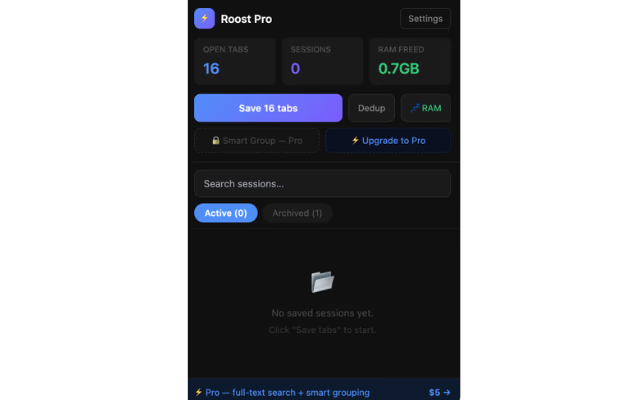
Roost Pro is built for users who regularly work across dozens—or even hundreds—of browser tabs. Instead of relying on Chrome to keep every project open indefinitely, it lets you save complete browsing sessions, including multiple windows and their layout, so you can close inactive projects and restore them later with minimal effort.
Some of the capabilities include:
- Save complete browser sessions
- Restore multiple windows together
- Preserve window layout
- Organize sessions by project
- Quickly switch between workflows
- Reduce browser clutter by archiving inactive work
This approach helps keep Chrome more responsive while ensuring your important workspaces remain easy to access whenever you need them.
Best Practices for Managing Hundreds of Chrome Tabs
- Organize windows by project.
- Save inactive sessions instead of leaving them open.
- Bookmark permanent references.
- Archive completed work.
- Remove duplicate tabs regularly.
- Restart Chrome occasionally.
- Keep only active projects running.
These habits improve productivity while reducing browser slowdowns.
Why Power Users Need More Than Chrome's Built-in Tab Management
Chrome has introduced useful features like Tab Groups and Memory Saver, but they only solve part of the problem. If you regularly work with dozens or hundreds of tabs across multiple projects, these built-in features can quickly become limiting. Tab Groups help organize tabs visually, but they don't provide a reliable way to archive complete workspaces and restore them exactly as you left them. Similarly, Memory Saver can free up system resources by putting inactive tabs to sleep, but it doesn't help you preserve an entire browsing session for future use.
This is where a dedicated session manager becomes invaluable. Instead of forcing Chrome to keep every project open all the time, you can save complete browser sessions—including multiple windows, tab order, and workspace organization—and restore them whenever you need them. Whether you're switching between client projects, conducting extensive research, or managing several development environments, this workflow keeps Chrome responsive while ensuring nothing important is lost.
For professionals who spend most of their day in the browser, solutions like Roost Pro make tab management far more efficient. Rather than reopening dozens of websites one by one after a restart or crash, you can restore your entire workspace with just a few clicks. This not only saves time but also reduces mental overhead, helping you focus on your work instead of searching for missing tabs. Over time, adopting a session-based workflow leads to a cleaner browser, faster performance, and significantly improved productivity—especially for developers, marketers, researchers, students, and anyone who relies heavily on Chrome every day.
Final Thoughts
Managing hundreds of Chrome tabs doesn't have to mean dealing with constant slowdowns, crashes, or clutter. By organizing your work into project-based sessions, closing inactive windows, and restoring them only when needed, you can keep your browser responsive without sacrificing access to important information.
For users who frequently multitask across many websites, a session management tool like Roost Pro provides a practical way to save complete browser workspaces, reduce memory usage, and resume work exactly where you left off. Instead of fighting tab overload, you can build a workflow that's faster, cleaner, and much easier to maintain.