
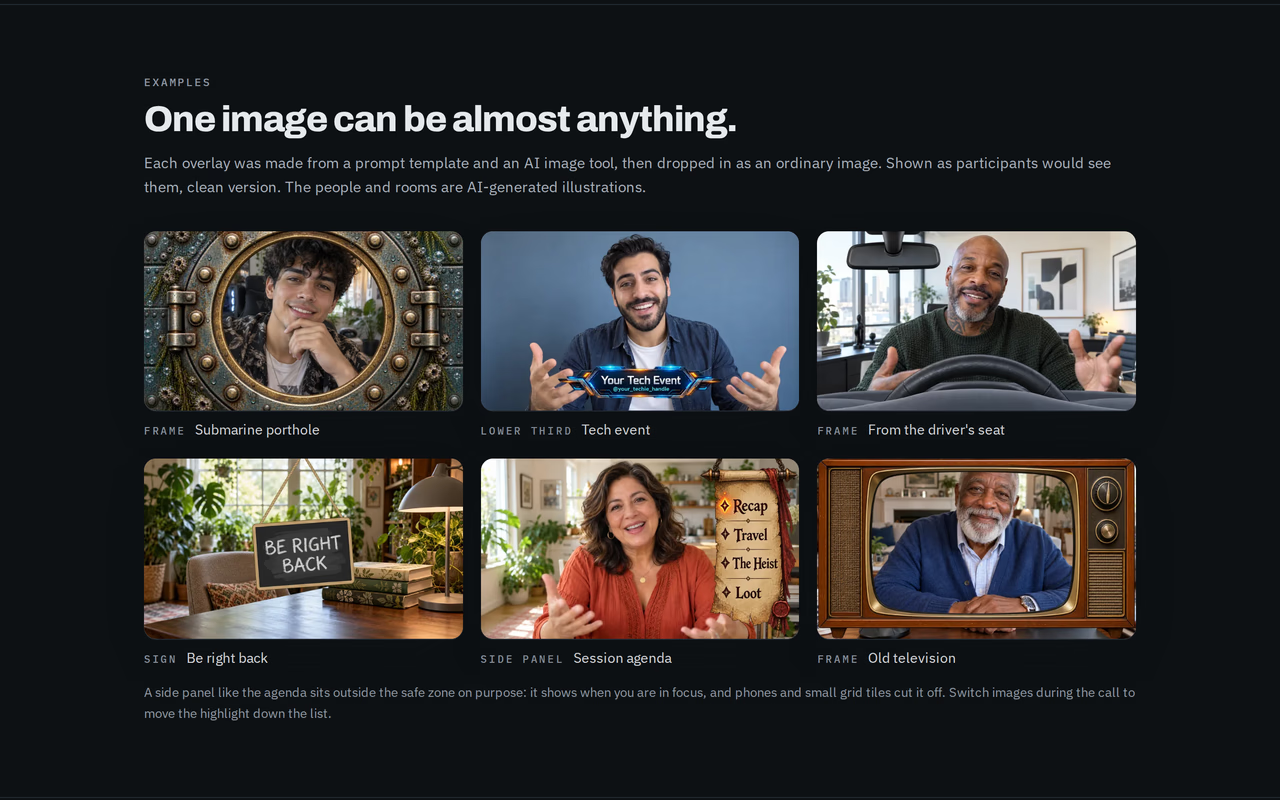
A Guest Speaker's Lower-Third Checklist Before Joining Someone Else's Call
The invitation arrives with a link, a start time, and a topic. It may say little about what the audience will see. Will the organizer display your name and title? Should you provide a graphic? Will you be a full-screen speaker or one small tile beside a presentation?
These details can feel secondary while preparing the talk. They become urgent when somebody asks for a title correction two minutes before the session begins. A guest speaker lower third is simple to make, but it sits at the intersection of several people's responsibilities.
A short preparation routine can resolve most of that uncertainty. The goal is to arrive with an appropriate identifying graphic when you need one, accurate information when the host supplies it, and an easy way to send clean video if the planned arrangement does not suit the session.
First establish who is providing the label
Do not assume that a guest must bring a lower third. Some production systems create one from the information used to invite the speaker. Others expect the organizer to upload graphics. An ordinary browser meeting may provide only a display name.
Vimeo's guest-invitation documentation is a useful example: it describes an organizer entering a guest's name and optional title, which are applied to a lower-third graphic associated with that guest. That is evidence of an organizer-managed workflow, not a requirement that guests produce their own image.
Ask one practical question during preparation: will the session display a name and title for me, or should I prepare my own camera label? Then provide the exact wording either way.
This is ordinary coordination, not a request for the host to build a new production system. If the host has the task covered, cooperate with that route. A duplicate label adds clutter without adding recognition. If the meeting leaves the task to you, move on to the camera-side workflow.
Confirm the actual joining environment
A link to a familiar platform is not enough information to determine how an overlay will work. You need to know whether you will join in a browser or a desktop app, and whether the session is an ordinary meeting or a specialized webinar or production mode.
Overlaysmith is a Chrome extension for browser calls. It does not modify the Zoom or Teams desktop applications, and support for a platform's ordinary browser meeting should not be stretched into a promise about every event role on that platform.
The product's supported-platform information is the starting point for a planned browser call. For an unverified webinar or streaming environment, do not treat the extension as a confirmed solution merely because a camera appears in a browser window.
Establish this before building an elaborate graphic. A beautiful image does not solve a mismatch between the tool and the event's video path. When the host supplies an event-managed lower third, providing correct text may be the most dependable contribution you can make.
Prepare one clear identity and one simple alternative
For a first graphic, use your name and the single role or affiliation most relevant to this audience. A presenter introduction is not a compressed biography. Websites, credentials, multiple organizations, and social handles all reduce the space available for recognition.
Imagine the audience encountering you halfway through the discussion. The name tells them whom they are hearing. The subtitle should explain the context they need now. If it requires decoding internal abbreviations, rewrite it in language the audience already understands.
One alternative can be useful: a shorter identification plate for discussion, or a topic banner for a planned segment. Avoid building ten versions simply because the tool can store them. Each extra option becomes another choice to make while speaking.
For a supported browser call, Overlaysmith can create the first plate from typed text or import a custom transparent image. Either route produces a prepared static picture. Keep the original editable design if you expect a title or organization change later, and use filenames that distinguish the versions immediately.
Build the picture for the viewer's small tile
A guest may be spotlighted, but should not depend on it. A moderator can switch layouts, a viewer can use a phone, or shared slides can reduce the camera to a smaller rectangle. Essential identification needs to survive those changes as far as the layout allows.
Use a transparent 16:9 canvas for a custom Overlaysmith image. Keep the important lettering toward the center, inside the library's inner guide lines. A border or decorative band can extend beyond that region if losing its edges does not lose the meaning.
Test the words at a small displayed size. A long subtitle that fits geometrically may still require too much effort to read. Shorten the text before assuming the answer is a smaller font. Give the name enough contrast against its own plate, and leave clear space around the face.
A simple label can look restrained and still communicate authority. Its practical standard is whether a stranger can identify you while listening, without opening the camera tile larger just to decipher the wording.
Rehearse the full route before the audience arrives
A useful rehearsal includes the actual joining method, camera, background configuration, and receiving view. Checking the graphic in an image editor verifies only one part of the route.
For a supported browser call, install Overlaysmith and reload an already-open call page before testing. Select the image and use Outgoing preview after the site has opened the camera. The rehearsal can show the composition locally before sending begins.
Then have another participant or device receive the call. Confirm the name is readable, the graphic is present, and a narrow layout does not remove the crucial words. Local preview cannot predict each viewer's crop or the production graphics an organizer may add later.
On Zoom's web client, check with its background effects off, since they can obscure the overlay. Its self-view can also show mirrored lettering even when the remote view is correct. Use the receiving check to settle orientation rather than reversing the image based on your own tile.
If the event is produced or recorded, inspect that particular output during rehearsal where available. A successful meeting check is not a substitute for verifying an untested broadcast or recording route.
Keep the live controls easy to recognize
When you are speaking, a control is useful partly because you know where it is without searching. Pin the extension to Chrome's toolbar, put the relevant images on the Stage, and remove unrelated choices from that lineup.
Overlaysmith lets you select another image or Off in the popup. Keyboard shortcuts can step through the Stage or switch the overlay off and back on. Test their assignments before the call. A remembered key combination is no help if Chrome did not assign it or another part of the setup captures it.
Practice Off as well as Next. If the host adds a title unexpectedly or asks for clean video, removing your graphic should be immediate. Stopping at the end of a Stage rather than wrapping to the beginning also makes a short sequence more predictable.
The goal is not to turn a guest appearance into live graphic operation. Prepare enough that the image can remain quietly useful, and make changes only when the conversation benefits. Listening and answering remain the work the audience came for.
Reset for the next context
A successful overlay can become the wrong overlay at the next meeting. The client name changes, the role is different, or a playful frame is no longer appropriate. Persistent selection is convenient, but only when persistence matches the way you work.
Overlaysmith offers a Start with no image setting under When a call page opens. For people who move between unrelated contexts, that can reduce the chance of carrying a previous choice into a new page. It is still wise to check the selection before sending: page behavior and recently chosen images affect when resets occur.
The current support documentation also describes saved stages for recurring lineups. A named lineup can make repeated appearances easier to prepare, but load and review it deliberately. A familiar stage name does not prove that every title inside it remains current.
Finish each appearance by deciding what should happen next. Turn the overlay off if you want a neutral starting point, or keep the selection only when the next use is intentional. This small habit prevents preparation for one audience from becoming a surprise for another.
Frequently asked questions for guest speakers
Can I add a lower third without asking the host to install anything?
Yes, with Overlaysmith on a supported browser call. The image is applied to your outgoing camera video. That removes host-side technical setup, but you should still coordinate with any event-provided labels and follow the session's rules.
Should I bring my own graphic if the host already provides one?
Usually there is no need to display both. Supply the correct name and title, review the host's result, and keep your camera clean unless there is an agreed reason for another graphic.
Does a successful Zoom meeting test prove it works in a Zoom webinar?
No. Webinar roles and production modes require their own verification. Overlaysmith's ordinary Zoom web meeting support should not be treated as a separate verified claim for webinar panelists.
Can I put the same overlay on my shared slides?
Overlaysmith applies the image to camera video, not screen sharing. If the presentation itself needs a title or logo, include that in the slides or the event's production workflow.
What should I do if the graphic is wrong during the call?
Turn it off first so the conversation can continue with clean video. Correct or select the right prepared image when practical. Knowing that recovery action is more useful than trying to make every possible mistake impossible.
Will a preview show exactly what all attendees see?
It shows the local outgoing composition or rehearsal, depending on the state. Recipients can see different crops, and a production system may add its own layout. Verify a real receiving or audience view for the appearance that matters.
Arrive with fewer unresolved visual decisions
The useful outcome of preparation is not simply having a lower-third file. It is knowing who owns the label, where it will be applied, what the audience can read, and how to remove it if the session requires something else.
That leaves the guest free to concentrate on the contribution they were invited to make. A camera graphic can carry context quietly. The preparation has done its job when nobody has to stop the conversation to work out why two names are on screen or where the right one went.
---
Overlaysmith is a free Chrome extension that adds one static image to outgoing webcam video on supported browser calls. Compositing happens on your computer, with no account required to use it. Every feature is free with a small mark; $1.99 once removes the mark.
Learn more: overlaysmith.com
Lower Thirds for Everyone: https://krispitech.com/lower-thirds-for-everyone-how-overlaysmith-brings-broadcast-polish-to-browser-video-calls/