
I used to work as a planner and executive assistant at an office. Plans arrived by email all day long: a meeting here, a visit there, a deadline someone wanted in the calendar. Each one needed the same small job done. Open the email, find the date and the time, find the place, switch to the calendar, create the event, type it all in, save.
I did not do that job when the email arrived. I opened each plan in its own browser tab and carried on with whatever else I was doing. The tabs stacked up in a row, and the row got longer. Some of them stayed open far too long.
Colleagues assumed I had not seen their request. That was never the problem. I had seen every one of them. I was putting them off, because typing a date and a time and a place into a calendar form, again and again, is tedious in a way that makes the rest of the day look more attractive. About a year later I built Yotei because of those tabs.
Why retyping a date is a bigger chore than it looks
The task sounds trivial, and that is exactly why it gets postponed. Nobody blocks an hour for it. It is a few minutes, many times a week, and it never feels worth doing right now.
It is also easy to get wrong. A calendar entry has a title, a date, a start time, an end time, a place and often a link or a note. The details sit in a sentence, a table or a screenshot, and they do not arrive in the order the form wants them. A numeric date such as 04/05/2027 means 4 May to one person and 5 April to another. A meeting in another time zone can land an hour out. A wrong hour in somebody else's calendar costs more than the minute you saved by hurrying.
When the plans are for a manager, a team or a family, the cost of one wrong entry is paid by other people. That is why I never found the chore small, even though every single instance was.
What Yotei does
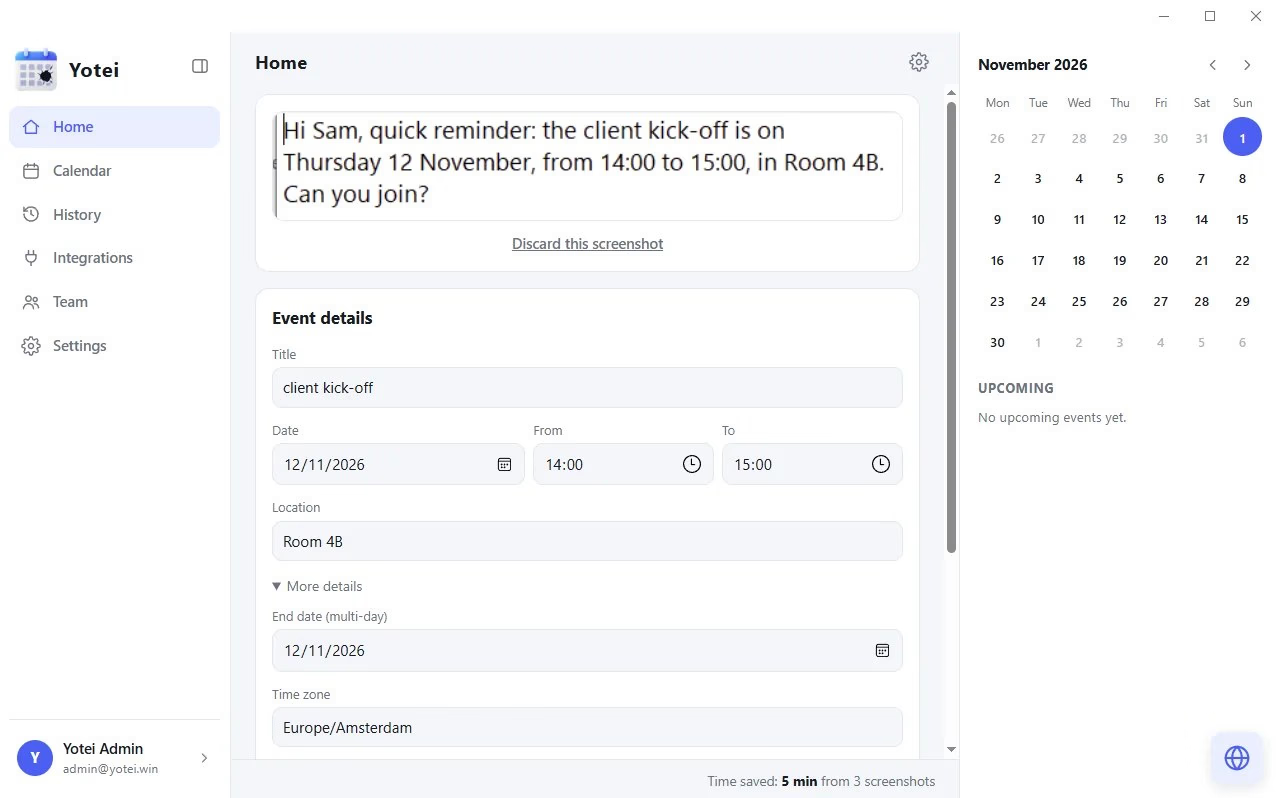
Yotei is an app for Windows and Mac that turns an event on your screen into a calendar entry. You press a shortcut, drag a box around the event, check the details, and confirm. The event goes into Google Calendar, Outlook or iCloud, and nothing is added until you say so.
It works on whatever is on your screen, because it reads what you can see and not what one particular program exposes. An invitation in a chat window, a booking confirmation in an email, a timetable in a PDF, a poster someone posted in a group: if you can see it, you can select it. There is no copying, no switching to the calendar and no typing.
Behind the box, an AI service reads the text in the area you selected and sorts the details into fields: the title, the date, the time, the place and the notes. You see those fields before anything is saved. If the date is wrong or the title is clumsy, you change it right there. When it looks right, you press the button and it is in your calendar. The old way meant opening the calendar and typing every field. With Yotei the whole job is a shortcut, a box and one button.
If you want to see how that works on your own calendar, the guides on adding an event to Google Calendar from a screenshot and on screenshot to calendar on Windows go through it step by step, and the browser demo lets you try the reading without installing anything.
Why a desktop app, and why not just use the phone
iPhones can do part of this now. On an AI-compatible iPhone running iOS 26, a screenshot of an event gets an Add to Calendar button. That is a good feature, and it is the example of what this should feel like.
My own work was not on a phone, though. It was on a computer, in desktop email and in Teams, and the calendar I cared about was open there too. Windows and Mac have no built-in equivalent of that button. That gap is the one Yotei fills. I wrote a longer guide on what Windows and Mac users can do about iOS 26 screenshots for anyone who wants the details.
The choices I made about your screen
An app that reads your screen needs to earn trust, so I made a few rules for it and wrote them down where anyone can check them.
- Only the box you drag is read. The rest of your screen is not captured when you press the shortcut.
- Nothing is added without you. Yotei shows what it found and waits for you to press Add. It only creates the events you confirm and never reads your other events.
- Screenshots do not stay around. They are used only to find the event, and they are deleted as soon as you confirm, or within 48 hours.
- It is a real company. Yotei is made by KD Digital, a Dutch company registered in Apeldoorn (KvK 42190103), with servers in Germany. Paid plans are sold through Paddle, and Google has reviewed and approved how Yotei uses Google Calendar.
The longer explanation is on the page about whether a calendar app is safe to read your screen, and the privacy and security pages cover retention and who can see what. I built it to meet the GDPR, and I would rather show you the details than ask you to take a claim on faith.
What Yotei is not
Yotei is a desktop app. There is no phone app, and it does not read a screen you are not looking at. The details have to be visible for you to select them. It is also not a replacement for your calendar. It does one job: it gets the event from where you found it into the calendar you already use.
The AI can misread things, which is why the check step is not optional. A messy flyer or an unusual date format is where you will most often need to fix a field. Seeing the event before you save it means a misread costs you a second, not a missed meeting.
Who it is for
I built it for the person I used to be: office assistants, planners and executive assistants who live in other people's calendars. It also suits freelancers, students and teams who get their plans in chats, emails and PDFs. If you are an assistant choosing a toolset, this comparison of Google Calendar delegation vs dedicated EA calendar tools shows where capture fits next to sharing and calendar apps. There is a free plan with 10 automatic readings a month and no card needed. The Individual plan is EUR 4.99 a month, and there are plans for teams of 5 and 50 people, each person with their own account.
Try it
I'm the maker of Yotei, and the feedback that helps me most is a screenshot where it got the date or the time wrong. You can start at yotei.win, try the demo, or look at the listing on NxGn Tools. If you have ever left a row of tabs open because the thing inside them was tedious to enter, you already know why I built it.