
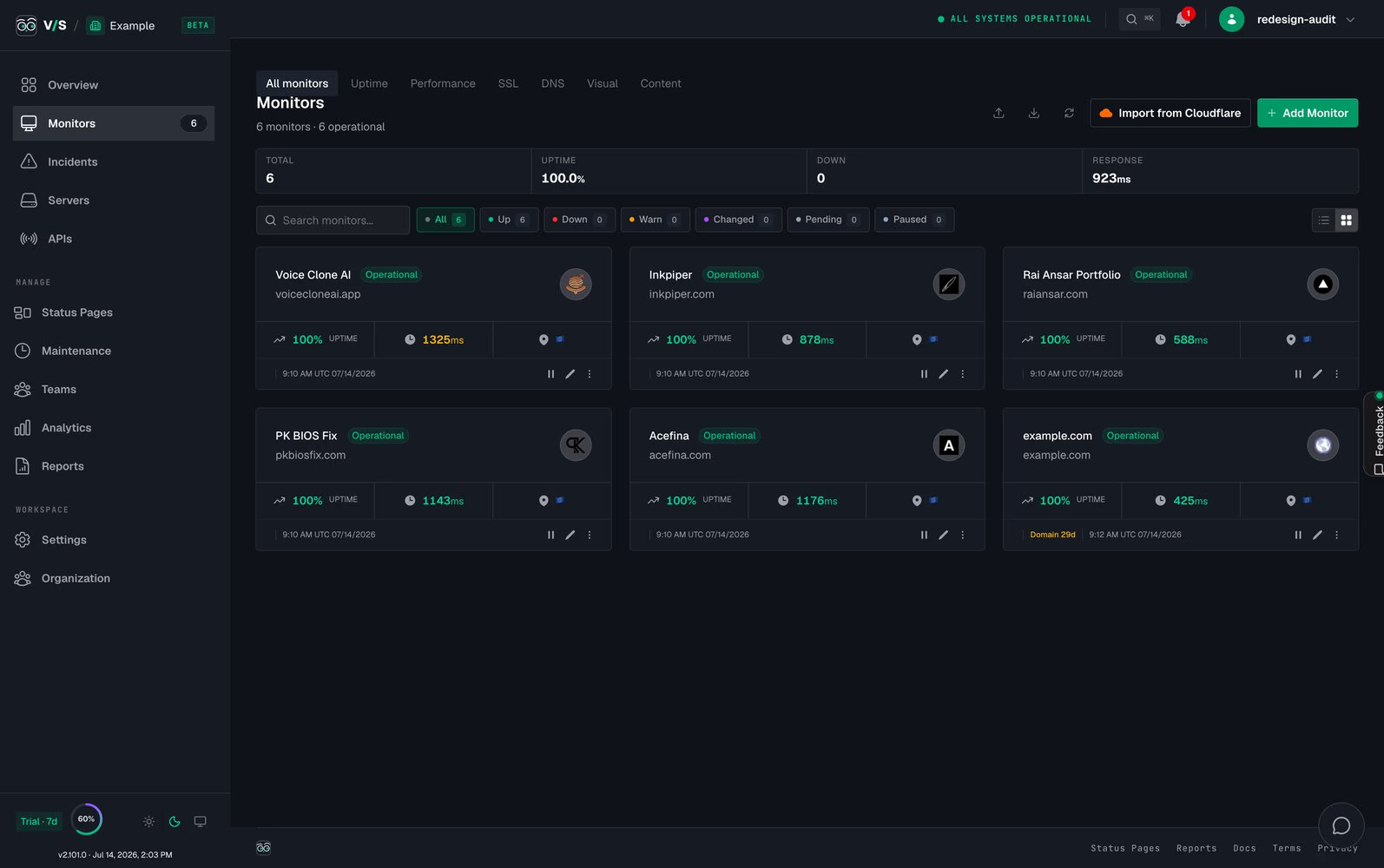
WordPress plugin updates can improve security, performance, and compatibility, but they can also introduce layout problems that are hard to spot until a visitor lands on the wrong page. A site may still load, return a normal status code, and appear healthy to a basic uptime tool while the homepage slider disappears, the mobile menu breaks, product grids lose styling, or checkout fields shift out of place. That is why the real challenge is not just keeping plugins updated. It is learning how to monitor WordPress plugin updates that break your site layout automatically, so you can detect visual regressions early and fix them before they damage trust, conversions, and support workload. This is where a visual monitoring workflow powered by Visual Sentinel becomes useful because it checks what users actually see instead of relying only on whether the server responds.
Why plugin updates break WordPress layouts so often
Most layout issues after a plugin update are not dramatic enough to take the whole site offline, which is exactly why they slip through unnoticed. A plugin can update a stylesheet, change a script dependency, alter a template output, conflict with a theme builder, or inject markup that shifts spacing across multiple sections. When that happens, your site may still return a 200 OK response, which makes a traditional uptime check look normal even though the page is clearly broken for users. This is especially common on WordPress sites that depend on page builders, WooCommerce extensions, optimization plugins, cookie banners, popups, translation tools, or custom snippets layered over time.
The risk grows even more when several plugins interact with each other. One update can trigger a conflict with caching, another can load assets in a different order, and another can change how components render on mobile devices. Because of that, layout monitoring should focus on what the rendered page actually looks like after the update, not only on whether the page responds successfully. That shift in thinking is what separates basic monitoring from practical WordPress plugin update monitoring.
What basic uptime monitoring misses
Many site owners assume monitoring is already covered because they use an uptime tool. That helps for outages, but it does not solve the more common problem of silent frontend failures. A broken hero section, missing featured images, invisible buttons, a collapsed navigation menu, overlapping text, or a damaged checkout form can all pass a standard availability check. From the monitoring tool’s perspective, the site is up. From the visitor’s perspective, the site is broken.
If your goal is to monitor WordPress plugin updates that break your site layout, then uptime alone is not enough. You need a system that renders the page in a real browser, captures what it looks like, compares it against a known good baseline, and alerts you when the visual difference crosses a meaningful threshold. That is the gap visual monitoring fills, and it is why teams that manage WordPress sites, client portfolios, SaaS dashboards, and eCommerce storefronts increasingly rely on screenshot-based checks instead of ping-only monitoring.
What effective WordPress layout monitoring should include
A useful monitoring setup should do more than tell you that something changed. It should help you understand what changed, when it changed, and where to look first. For WordPress plugin updates, that means your monitoring stack should cover the page appearance itself while also tracking supporting layers that often contribute to a bad rollout.
- Visual page monitoring that compares screenshots against a baseline
- Fast alerts so broken pages are discovered quickly
- Screenshot history to identify when the issue started
- Performance tracking in case an update slows key pages
- SSL monitoring so certificate issues do not get confused with plugin issues
- DNS monitoring to catch unrelated infrastructure changes
- Content monitoring for unauthorized or unexpected page changes
This broader approach matters because not every post-update problem is purely visual. Sometimes a plugin update causes delayed asset loading, a timeout, a script error, or a content fragment to disappear. When you monitor multiple layers together, you avoid chasing the wrong cause and get to the fix faster.
How Visual Sentinel helps catch broken layouts after plugin updates
Visual Sentinel is built for the type of issue that ordinary uptime tools miss. Instead of only checking whether a page responds, it renders pages in a real browser and compares screenshots pixel by pixel against a baseline. That makes it useful for catching broken layouts, missing images, spacing shifts, visual regressions, CSS conflicts, and other post-update problems that still return a healthy status code. For WordPress teams, this is important because plugin-related failures often live entirely in the rendered frontend.
The platform also fits this use case because it combines visual monitoring with uptime, performance, SSL, DNS, and content monitoring in one workflow. That means if a plugin update breaks a layout while also slowing the page or affecting output on a key landing page, you can see the broader incident instead of looking at isolated signals. Visual Sentinel also supports alert delivery across channels like email, Slack, Discord, WhatsApp, Telegram, Microsoft Teams, PagerDuty, OpsGenie, webhooks, Prometheus, and push notifications, which helps route issues to the right person quickly.
Another practical advantage is that the setup is external. You do not need to install a WordPress plugin or make code changes just to begin monitoring. That matters for agencies and site owners who want layout protection without adding more components inside the same environment that is already vulnerable to update conflicts.
A practical workflow to monitor plugin updates that break your site layout
The best monitoring system is only effective when it is paired with a repeatable process. If you want to consistently catch WordPress layout breakage after plugin updates, use a simple workflow that combines pre-update preparation with post-update verification.
- Identify the pages that matter most, such as the homepage, service pages, product pages, cart, checkout, contact page, and any high traffic landing pages.
- Create a visual baseline for each critical page while the design is in a known good state.
- Choose an alert sensitivity that ignores harmless dynamic changes but catches real layout shifts.
- Run plugin updates in a controlled window, especially for builders, WooCommerce add-ons, form plugins, optimization tools, and custom integrations.
- Review visual alerts immediately after updates so you can compare the current page against the last healthy baseline.
- Check supporting signals such as performance, content changes, and availability if the visual issue appears tied to a wider failure.
- Roll back or isolate the plugin if the incident started immediately after the update.
- Document the failure pattern so future updates can be tested more carefully.
This process helps you move from reactive troubleshooting to proactive detection. Instead of waiting for a client email or a customer complaint, you turn plugin updates into observable events with a clear before-and-after record.
Which WordPress pages you should monitor first
Not every page has the same risk or business impact, so it helps to prioritize. In most WordPress setups, the most important pages are also the most fragile because they combine templates, builder widgets, dynamic data, forms, scripts, and external integrations. Monitoring those pages first gives you the highest return with the least setup effort.
- Homepage because it usually contains the most custom design elements
- Header and navigation because menu failures hurt the whole site experience
- Product category and product pages for WooCommerce stores
- Cart and checkout because visual issues directly affect revenue
- Lead forms and contact pages because broken fields reduce conversions
- Blog templates if ad placements, related posts, or author boxes frequently change
- Mobile-critical landing pages if most traffic comes from phones
Once these are covered, you can expand to secondary pages and client-specific templates. The goal is not to monitor every URL on day one. The goal is to cover the pages where a plugin-related layout failure would cost you the most.
How to reduce false alarms in visual monitoring
One concern site owners often have is whether visual monitoring will alert on every small page change. That is a fair concern because WordPress pages can include rotating banners, timestamps, dynamic widgets, and other elements that naturally change. A good setup handles this by adjusting sensitivity and focusing on meaningful pages rather than monitoring every dynamic area without context.
To reduce noise, start with stable pages and avoid using a sensitivity that is too aggressive. Monitor templates that should remain consistent, and review which areas of the page change normally throughout the day. Once you understand that pattern, you can choose thresholds that ignore expected movement while still catching missing sections, broken grids, invisible text, or shifted layouts. The result is not just more alerts. It is better alerts that point to real issues worth investigating.
Why this matters for agencies, site managers, and WooCommerce stores
If you manage one personal blog, discovering a layout issue a few hours late may be annoying. If you manage multiple client sites or an online store, the cost rises quickly. Agencies face reputational damage when clients notice broken pages first. Site managers lose time manually checking updates. WooCommerce stores can lose revenue from something as small as a distorted add to cart button, missing product image, or broken checkout layout. That is why automated WordPress plugin update monitoring is not just a convenience. It is an operational safeguard.
Visual Sentinel is particularly relevant in those environments because it is designed for teams that manage WordPress sites, SaaS apps, eCommerce experiences, and agency portfolios from one place. That kind of monitoring is useful when updates are frequent, traffic is valuable, and layout failures need to be found before they become support tickets or lost sales.
Best practices for safer plugin update rollouts
Monitoring is strongest when it supports a disciplined update routine. If you combine visual monitoring with better rollout habits, you can reduce both the chance and the impact of a broken layout.
- Update plugins in batches only when necessary, and isolate risky plugins when possible
- Handle page builders, WooCommerce extensions, and optimization plugins with extra caution
- Take backups before major updates so rollback is fast
- Use staging for larger changes, but still monitor production because staging rarely matches every real condition
- Keep a list of high risk pages and check them first after updates
- Review screenshot history when an incident happens so you can pinpoint the exact change window
- Route visual alerts to the channel your team actively watches
These habits turn monitoring into a reliable part of change management. Instead of treating plugin updates as routine maintenance with occasional surprises, you treat them as events that deserve verification and visibility.
Final thoughts
If you have been wondering how to monitor WordPress plugin updates that break your site layout, the answer is to stop relying only on uptime checks and start monitoring the rendered page itself. Plugin update failures often happen in the frontend, where the server appears healthy but the user experience is clearly broken. A practical solution is to track critical pages visually, compare them against a known good baseline, and send alerts the moment a meaningful layout change appears.
That is where Visual Sentinel stands out for this use case. It gives WordPress site owners, agencies, and store operators a way to detect broken layouts, missing assets, styling regressions, and silent page failures that ordinary uptime monitoring misses. When combined with a thoughtful update workflow, it helps you catch problems earlier, fix them faster, and protect the pages that matter most.