
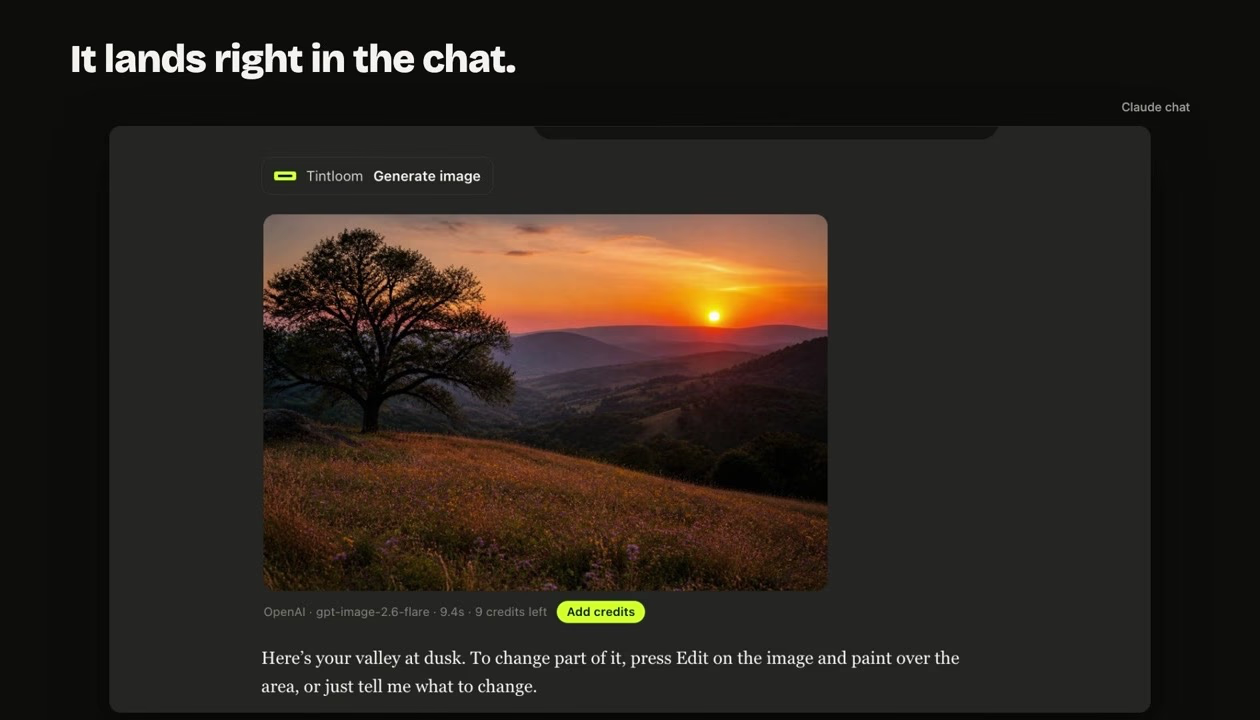
If you already write your video titles, hooks and scripts with Claude, the thumbnail is the one piece that still sends you somewhere else. You copy a description into an image app, wait, download, come back, and the image app has none of the context you just spent twenty minutes building. This guide shows a shorter loop: making the thumbnail in the same Claude chat where the video was planned, then fixing it by saying what to change.
Can Claude make a YouTube thumbnail on its own?
Not by itself. Claude reads images and writes very good briefs, but it does not generate photos or illustrations the way an image model does. Ask a plain Claude chat for a thumbnail and it will usually offer a written prompt, an SVG mock-up or a description of what the thumbnail could look like. None of those is a picture you can upload to YouTube.
What changes this is a connector. Claude supports custom connectors, small services it can call from inside a chat. An image connector gives Claude an image model to call: Claude writes the request, the connector makes the picture, and the picture appears in the conversation. Tintloom is one such connector, built for exactly this: images inside Claude chats, on the web, the desktop app, the phone app and in Claude Code.
Why make thumbnails in the same chat as the script
A thumbnail is a summary of the video in one frame. The best brief for it is the material you already have: the title, the hook, the tone, who the video is for. When the thumbnail is made in the same chat, Claude can draw on all of that. You do not have to retype the topic, explain the joke, or describe the audience again.
It also keeps your options close together. You can ask Claude for three title ideas and a thumbnail for each, compare them side by side in one conversation, and keep the pair that works. When you move between apps, that comparison usually falls apart.
Step 1: Add an image connector to Claude
You only do this once. With Tintloom, the connect page has a button that opens Claude with the connector already filled in. You press Add, then Connect, and sign in with Google or an email address. A new account comes with free credits and needs no card, so you can try a few thumbnails before deciding whether it is worth paying for.
A few practical notes:
- Claude's Free plan allows one custom connector, so this works on the Free plan too.
- On Team and Enterprise plans, an owner or admin adds the connector for the organisation first.
- Add it on the web or the desktop app. Once added, it shows up in the Claude phone app as well.
Step 2: Give Claude the video
Open the chat where you wrote the script, or start a new one and paste in the title and a few lines about the video. The more Claude knows about the video, the less you need to describe the picture. A good starting message looks like this:
This is a 12-minute video about the worst budgeting advice on the internet. The tone is sarcastic but friendly. The title is “I tried the internet's worst money tips for a month.”
Step 3: Ask for the thumbnail
Now ask for the image, and be explicit about three things: the shape, the words and the subject.
- Shape. Say 16:9. YouTube thumbnails are widescreen, and an image model will not guess that.
- Words. Give two to four words and ask for them to be big. Short hooks come out sharpest. Long sentences on a thumbnail are hard to read on a phone and more likely to come out misspelled.
- Subject. One clear subject with an expression reads better than a busy scene. “A shocked man holding an empty wallet” beats “a man in a kitchen surrounded by bills, receipts, a laptop and a calendar”.
For example:
Use Tintloom to make a YouTube thumbnail for this video, 16:9. A shocked man holding an empty wallet, bright yellow background, the words NEVER AGAIN in huge black letters on the left.
Naming the connector (“Use Tintloom to…”) is useful the first time. It tells Claude which tool to call instead of offering to write a prompt for you. After the first image, Claude usually picks it up on its own.
Step 4: Fix what is off by saying it
The first image is rarely the final one, and that is fine. The point of working in a chat is that the next version is one sentence away:
- “Make the text bigger and move it to the right.”
- “Brighter background, more contrast.”
- “Same picture, but he should look angrier.”
- “Give me three variations of this.”
In the Claude apps, Tintloom's image card also lets you edit by pointing. You open the picture, paint over one area, and say what should go there. Only the painted area changes; the rest of the picture stays as it was. That is the quickest way to fix a hand, swap an object, or change one word without redoing the whole thumbnail. The same card can erase an object, change the shape of the picture or remove the background.
Step 5: Save it and upload it to YouTube
Save the image from the chat, then in YouTube Studio open the video's details, choose Thumbnail, then Upload file. YouTube's help page asks for a 16:9 image at least 640 pixels wide, as a JPG or PNG, and recommends a larger size for sharp results. A 16:9 image from Tintloom comes back around 1680 by 944 pixels, which clears the minimum. Custom thumbnails also need a verified YouTube account, which takes a phone number.
What to ask for: thumbnail habits that work
A few habits make a bigger difference than the choice of model:
- Design for a phone. Most people see your thumbnail at the size of a fingernail. Ask for one subject, big type and strong colour contrast, then look at it zoomed out before you decide.
- Say the emotion, not just the object. “Surprised”, “smug”, “exhausted” and “guilty” give the image model something to work with. A neutral face is easy to scroll past.
- Keep words on the thumbnail different from the title. The title already says what the video is. The thumbnail words should add a reaction or a stake: NEVER AGAIN, IT WORKED, $0 LEFT.
- Check the spelling. Image models are much better with text than they used to be, but a wrong letter still happens. If one does, say “fix the spelling of AGAIN” and ask again, or paint over the word and ask for it to be rewritten.
- Use draft quality to explore. Try a few rough ideas at a cheaper quality, then ask for a higher quality version of the one you like.
Keeping one style across a whole channel
Thumbnails work better when a viewer can recognise your channel before reading the title. Claude helps here because it remembers what is in the conversation. Two ways to use that:
- One chat per series. Make each new thumbnail in the same chat and ask for it “in the same style as the last one”.
- A Claude project for the channel. Write the style down once in the project instructions: background colours, font weight, where the face goes, where the words go. Every new chat in that project starts with that style.
If you want to start from examples, Tintloom keeps a page of image prompts you can copy and adapt.
What about putting your own face on it?
Many channels use the creator's face on every thumbnail. Inside Claude, whether a photo you attach reaches a connector depends on the Claude app, so it is not something to rely on there yet. If you need your own face in the shot, Tintloom also has a free-standing YouTube thumbnail maker on its website that takes a photo of you and builds the thumbnail around it, using the same account and credits.
Does this work in Claude Code?
Yes. If you build your channel's website, an intro animation or a batch of assets in Claude Code, the same connector works there with one command. Instead of a card in the chat, you get the image file and a link, and Claude Code can save it into your project. That is handy for channel art, banner variations or a set of thumbnails for a playlist.
What it costs
Claude itself does not charge extra for using a connector. The connector has its own pricing. Tintloom is free to start with a set of credits and no card, then works on monthly or yearly plans, with one-time top-ups if you only need a few images. Each image costs credits depending on the quality you pick, and edits cost a little more. The models page lists every image model it runs and what each one costs.
A quick checklist
- Add an image connector to Claude once.
- Work in the chat where the video was planned.
- Ask for 16:9, two to four big words and one clear subject with an emotion.
- Fix it by saying what to change, or paint over one area.
- Check the spelling, look at it at phone size, then upload it in YouTube Studio.
The full step-by-step version, with an example you can open straight in Claude, is in the guide How to make a YouTube thumbnail in Claude.
Tintloom is an independent product. It is not made, endorsed or sponsored by Anthropic, YouTube or Google. Claude is a trademark of Anthropic, PBC.